How to Change Your WiFi Password Through 10.0.0.1 Safely
You can change your WiFi password through 10.0.0.1 by signing in to the router, opening its settings and replacing the current security key. After saving the change, reconnect every trusted device with the new password. The exact names of menus vary between routers. Only change settings on a network that you own or are authorized to manage.
Before starting, write down your WiFi name and make sure you know the router’s admin login. This reduces the chance of losing access during the process.
What You Need Before Changing the Password
Connect a phone or computer to the router’s WiFi network. A computer connected through an Ethernet cable is more convenient because a wireless password change will not immediately disconnect the cable. You will also need the administrator username and password. Check the router label, manual or information supplied by your internet provider if you do not know them.
Remember that the admin password and WiFi password can be different. The admin password opens the settings panel. The WiFi password allows phones, laptops and other devices to join the network.
How to Change Your WiFi Password Through 10.0.0.1
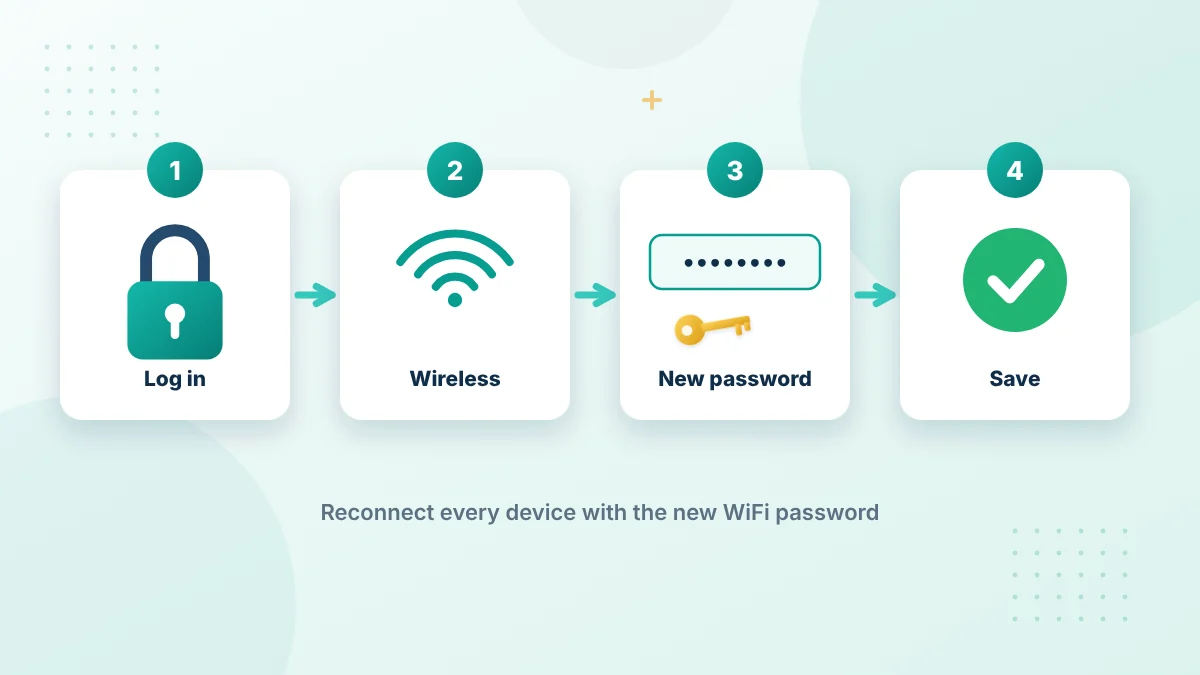
The basic method is similar on most routers, though the wording and screen layout may look different.
1. Connect to the Router
Make sure your device is connected to the router you want to manage. Check the network name instead of assuming you are using the correct WiFi. Phone users can temporarily disable mobile data if the browser keeps switching away from the local connection.
2. Open the Login Address
Open Chrome, Firefox, Safari, Edge or another browser. Enter this address in the address bar:
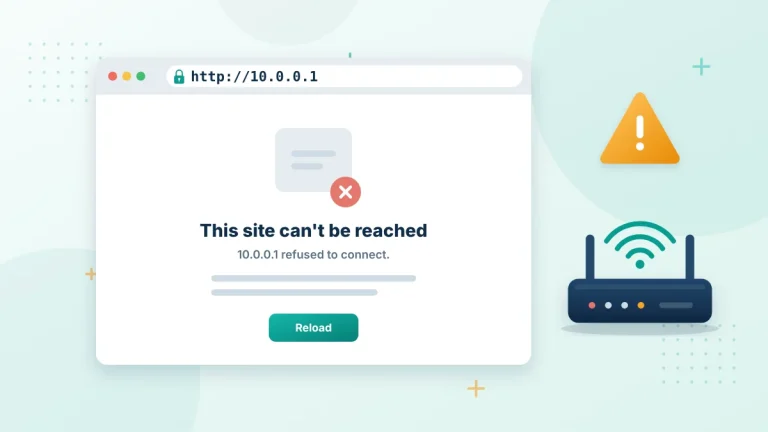
Do not add www or .com. Also avoid 10.0.0.0.1, which contains an extra number group and is not a valid IPv4 address. If the page does not open, check your device’s network details. The value shown beside Router or Default Gateway is the address your router actually uses.
3. Sign In to the Admin Panel
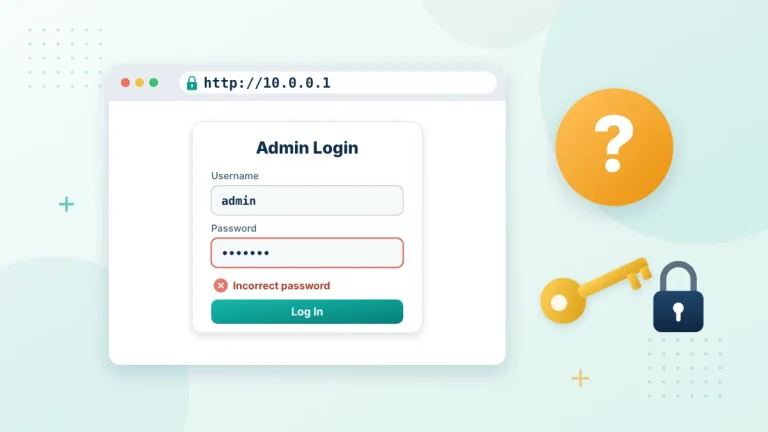
Enter the administrator username and password. These details may be printed on the router or saved from the original setup. Do not enter your WiFi password unless the router uses the same value for administration. If the login form rejects your details, confirm them before trying again.
4. Find the Wireless Settings
After login, look for a section named:
- WiFi
- Wireless
- WLAN
- Wireless Settings
- Network Settings
Some dashboards place these options under a menu called Gateway or Connection. Open the section related to your wireless network.
5. Select the Correct WiFi Network
Modern routers may show 2.4 GHz and 5 GHz networks. Some also include a 6 GHz band. Check whether the bands share one WiFi name and password. If they are separate, you may need to update each one.
Do not accidentally edit the guest network when you intend to change the main network. Compare the SSID shown in the panel with the WiFi name used by your devices.
6. Enter a New Password
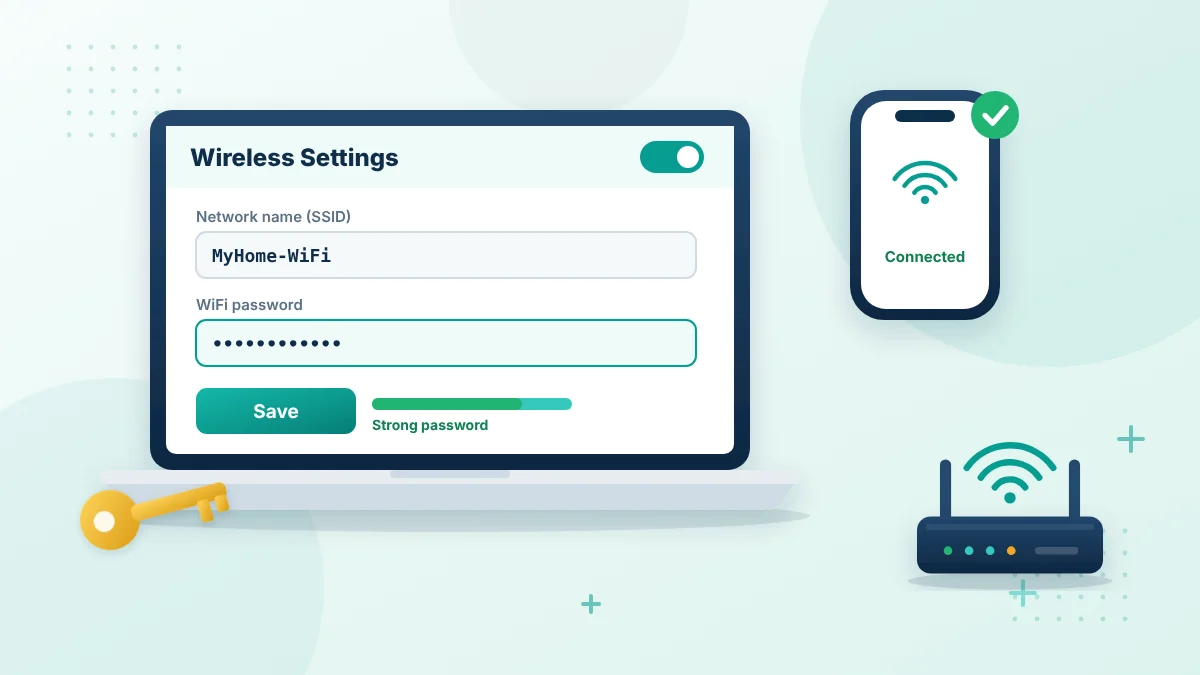
Find a field named Password, WiFi Key, Security Key, Pre-Shared Key or something similar. Remove the old value and enter your new password. Choose something difficult to guess. A mixture of words, numbers and symbols can work well. Avoid your name, mobile number, home address or simple options such as 12345678. Do not reuse a password from your email, bank or social media accounts.
7. Save the Change
Select Save, Apply or the equivalent button. Give the router a moment to update its settings. Your phone or computer may disconnect immediately. This is normal because the saved WiFi details no longer match the router. Avoid closing or restarting the router while it is applying the change.
How to Reconnect Your Devices
Open the WiFi settings on your phone or computer. Select the same network name. Enter the password when asked. If the device keeps using the old details, choose Forget Network and connect again. Make sure you enter the password with the correct capitalization. Repeat this process for every trusted device, including:
- Phones and tablets
- Laptops and desktop computers
- Smart televisions
- Streaming devices
- Security cameras
- Printers
- Game consoles
- Smart home equipment
Some devices do not clearly report a password. They may simply appear offline until their saved WiFi details are updated.
Should You Change the WiFi Name Too?
Changing the network name is optional. Keeping the name makes it easier to recognize, but each device will still need the new password. A new WiFi name can help when you want to separate the updated network from an old one. Avoid adding information such as your full name, house number or phone number. If you change both the name and password, write them down temporarily before saving. This will make reconnection easier.
Which WiFi Security Option Should You Use?
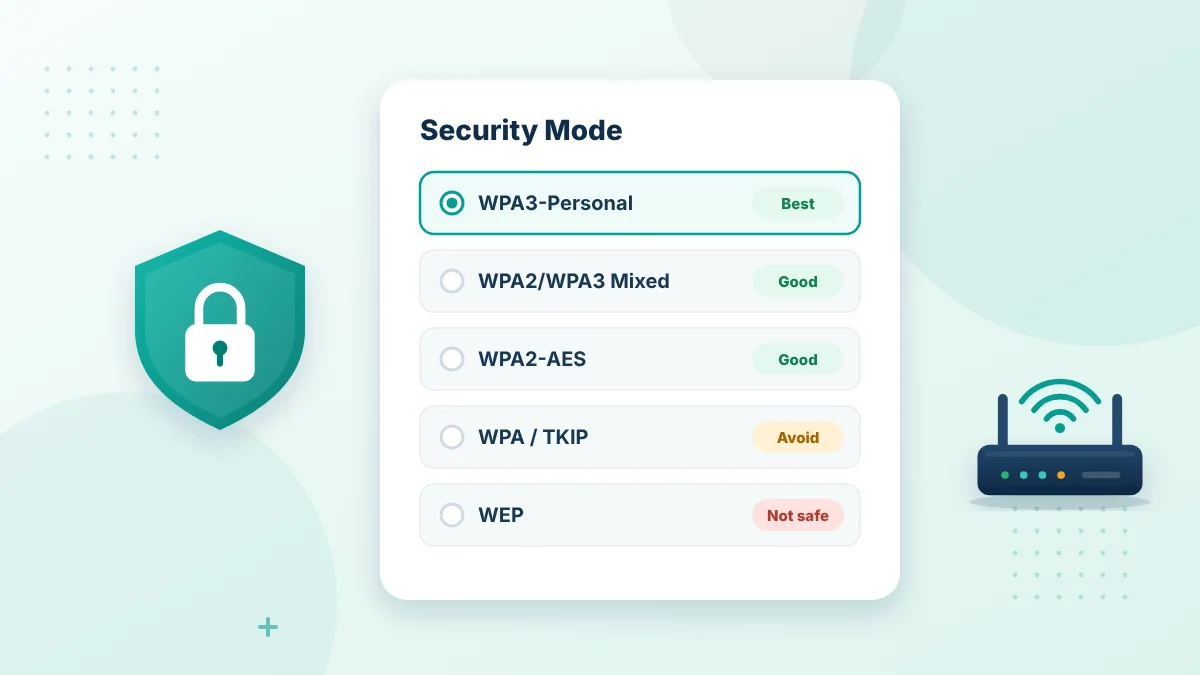
Use WPA3 when the router and your important devices support it. WPA2 with AES remains suitable for older devices. Avoid selecting WEP because it is outdated. Be cautious with security modes if the router warns that they may reduce protection or performance. Do not change the security mode without a reason if all your devices currently connect properly. Older printers, cameras and smart devices may not support every option.
Why Is the New Password Not Working?
First check capitalization and any similar-looking characters. Make sure there is no space before or after the password. Forget the network on the device, then connect again. Restarting that device can also clear wireless information.
If no device can connect, use an Ethernet cable where possible and reopen the router panel. Confirm that the password was saved for the correct network band.
You can also check whether the router has main and guest networks. The password you changed may belong to a different SSID.
What If You Lose Access Completely?
Do not factory-reset the router immediately. First test the password on another device and check whether the old password still works. If possible, connect a computer through Ethernet. Inspect the wireless settings again. You may discover a typing mistake or an unchanged frequency band.
A factory reset can erase the WiFi name, password, administrator details and provider-specific configuration. Use it only after safer recovery methods fail and you understand how to set up the router again.
Frequently Asked Questions
Can I change my WiFi password from my phone?
Yes. Connect the phone to the router, open 10.0.0.1 in a browser and sign in with the administrator details.
Is the admin password the same as the WiFi password?
Not necessarily. One protects the router settings while the other connects devices to the network.
Why did my phone disconnect after I saved the change?
The phone still had the old password saved. Reconnect to the network using the new one.
Do I need an internet connection?
The admin page can normally open without internet service. You still need a WiFi or Ethernet connection to the router.
Why does 10.0.0.1 not open?
The router may use another gateway. Check the Router or Default Gateway value in your network details.
Will changing the WiFi password remove users?
Devices using the old password will lose access. Reconnect the devices you trust with the new details.
How to Choose a Strong WiFi Password
A strong WiFi password keeps neighbours and strangers off your network. When you change your WiFi password through 10.0.0.1, choose something long that is still easy for you to type on every device.
- Use at least 12 to 16 characters.
- Combine several unrelated words with a number and a symbol.
- Avoid names, phone numbers, addresses and simple patterns such as 12345678.
- Do not reuse your router admin password or your email password.
- Write it down and keep it somewhere safe at home.
Change Your WiFi Password on Both 2.4 GHz and 5 GHz
Many routers broadcast two WiFi networks, one on 2.4 GHz and one on 5 GHz. Some routers use one password for both, while others show a separate field for each band. After you change your WiFi password, open both band settings and make sure each one uses the new key. A guest network usually has its own password too.
How Often Should You Change Your WiFi Password?
There is no fixed rule. Change your WiFi password when you move into a new home, when someone you no longer trust knows it, when you notice unknown devices in the connected devices list, or when the router still uses the default key printed on the label.
Check Connected Devices After the Change
A few minutes after you change your WiFi password, open the connected devices list in the router dashboard. Every device you see should be one that you reconnected yourself. If an unknown device still appears, it may be using a cable or a guest network, so check those settings as well.
Changing it very often is not necessary if the password is strong and private. If you also need the admin login, read our 10.0.0.1 default password guide, and see the 10.0.0.1 phone and computer login guide for the full sign-in steps.
Final Words
To change your WiFi password through 10.0.0.1 safely, confirm the network, sign in with the admin details and edit only the intended wireless profile. Save the password privately and reconnect your trusted devices. If something goes wrong, check the selected WiFi band and saved credentials before considering a factory reset.
More Guides After You Change Your WiFi Password
These guides help you manage your router after you change your WiFi password.
Useful references: CISA guide to securing wireless networks and Wi-Fi Protected Access (WPA).