Phone & PC Guide
How to Log In to 10.0.0.1 on Phone and Computer
Step-by-step 10.0.0.1 login for Windows, Mac, Android and iPhone. No app needed, just your browser.
- Phone and computer
- No app needed
- Step-by-step help
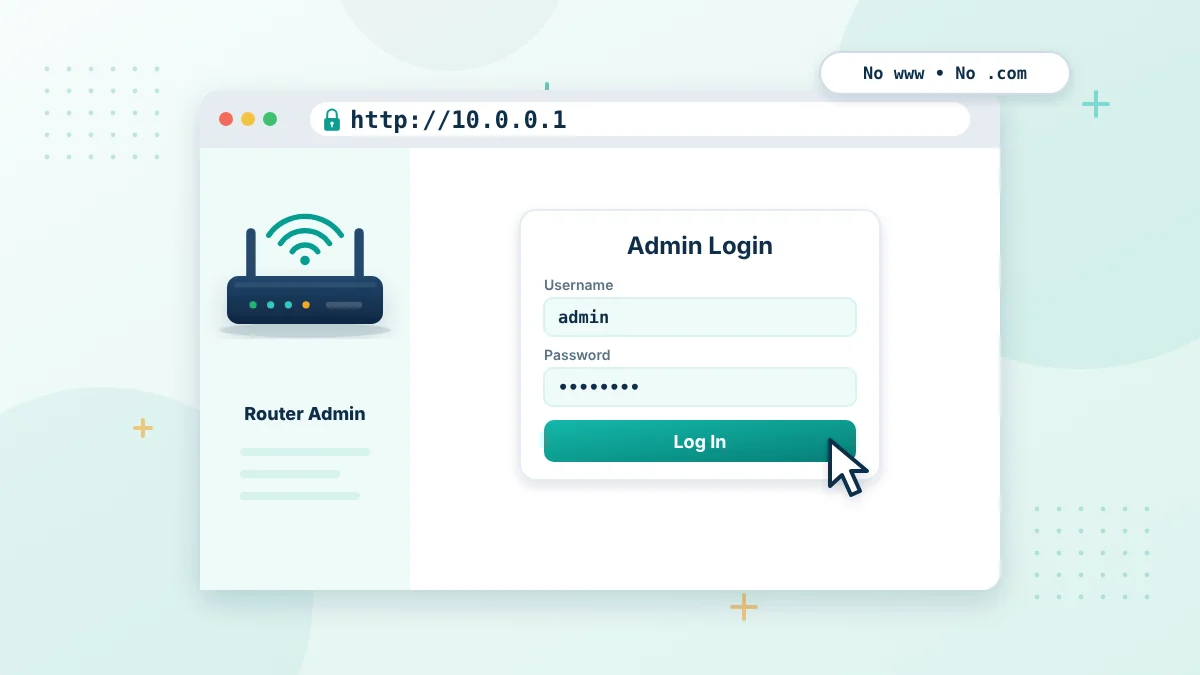
This guide shows you how to log in to 10.0.0.1 from the device you are using right now: a Windows PC, a Mac, an Android phone or an iPhone. The login itself is the same on every device, but finding the gateway address and fixing errors works a little differently on each one, so every device is covered step by step.
You will also learn what you need before you start, what you can change after you sign in and how to fix common login errors on phones and computers. If you are not sure that your router uses this address, first check your router IP address.
What You Need Before You Log In
Check these four things before you start. Most failed login attempts happen because one of them is missing.
- A phone, tablet or computer connected to the router by WiFi or an Ethernet cable
- The correct gateway address, which may be 10.0.0.1 or another private IP
- The router admin username and password, which is different from the WiFi password
- Permission to manage the router if it belongs to someone else
You do not need an app or an internet connection. The admin page is served by the router itself, so it can open even when the internet is down.
Find Your Gateway on Windows, Mac, Android and iPhone
Not every router uses this address. Before you try to log in, look up the default gateway on the device you are using.
- Windows: open Command Prompt, type ipconfig and look for Default Gateway.
- Android: open WiFi settings, tap the connected network and look for Gateway or Router.
- iPhone or iPad: open Settings > Wi-Fi, tap the info icon and look for Router.
- Mac: open System Settings > Network > Details > TCP/IP and look for Router.
If the gateway shows 192.168.1.1 or another address, use that number instead. The full list of common addresses is in our router IP address guide.
How to Log In to 10.0.0.1 on a Computer (Windows or Mac)
- Connect your computer to the router WiFi or plug in an Ethernet cable.
- Open Chrome, Edge, Firefox, Safari or any other browser.
- Click the address bar at the top of the window, not a search box on a web page.
- Type http://10.0.0.1 and press Enter.
- Wait for the login form to appear. Some routers take a few seconds to respond.
- Enter the admin username and password, then click Log In or Sign In.
If the browser shows a security warning, it is usually because the router uses a self-signed certificate. Confirm that the address bar shows 10.0.0.1 and that you are connected to your own network before you continue.
How to Log In to 10.0.0.1 on a Phone (Android or iPhone)
You can log in to 10.0.0.1 on Android or iPhone without installing any app. The steps are almost the same as on a computer.
Android
Open Settings, tap WiFi and make sure you are connected to the router network. Turn off mobile data for a moment so the phone does not switch away from WiFi. Open Chrome, type http://10.0.0.1 in the address bar and sign in with the admin details.
iPhone and iPad
Open Settings > Wi-Fi and confirm the network name. If a VPN is active and the page does not load, pause the VPN and try again. Open Safari, enter http://10.0.0.1 in the address bar and sign in.
Some internet providers also offer a mobile app for their gateways. The app is optional, and the browser method works on most routers that use this address.
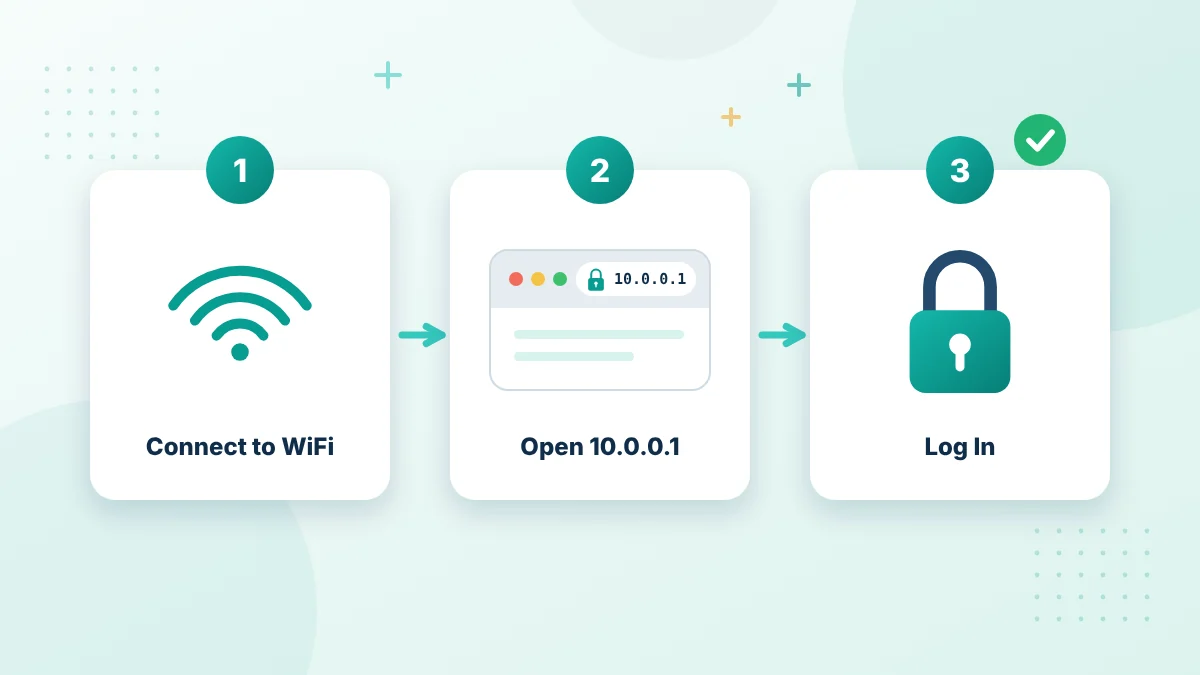
Quick steps
Log In to 10.0.0.1 in Three Steps
Most login problems are solved by joining the right network and typing the address in the browser address bar.
- Connect to the router WiFi or Ethernet
- Type http://10.0.0.1 in the address bar
- Enter the admin username and password
What You Can Do After You Log In
Menu names differ between brands, but most router dashboards include similar sections. Change one setting at a time and write down the old value first.
| Menu section | What it controls |
|---|---|
| Status or Overview | Internet connection, firmware version and uptime |
| Wireless or WiFi | Network name (SSID), WiFi password and WiFi bands |
| Security | Encryption type, firewall and WPS |
| Connected Devices | Phones, laptops, TVs and other devices on the network |
| LAN or DHCP | The router IP address and the address range given to devices |
| Administration | Admin password, remote management and firmware updates |
To change your WiFi name or password, follow our guide on how to change your WiFi password through 10.0.0.1. To change the admin login itself, see the 10.0.0.1 default password guide.
Common Login Errors and How to Fix Them
Use this table to match the error you see with its most likely cause.
| Problem | Likely cause | What to try |
|---|---|---|
| This site can’t be reached | Wrong network or wrong gateway | Join the router WiFi and check the default gateway |
| Search results appear | Address typed in a search box | Type http://10.0.0.1 in the address bar |
| Connection refused or timed out | Router busy, VPN or proxy active | Restart the router and pause the VPN |
| Password is rejected | Wrong or changed admin password | Check the router label or ask who set it up |
| Page loads without buttons | Old router page or cached files | Try another browser or a private window |
| Login page keeps reloading | Blocked cookies or an old session | Allow cookies for 10.0.0.1 or clear the cache |
If the page still does not open, read our detailed guide for when the 10.0.0.1 login page is not opening.
Keep Your Router Login Secure
- Change the default admin password after your first login.
- Use WPA2-AES or WPA3 encryption for your WiFi network.
- Turn off remote management unless you really need it.
- Install firmware updates only from the router maker or your internet provider.
- Log out of the admin panel when you finish, especially on a shared computer.
- Do not save the admin password in a browser on a public or shared device.
These steps follow common home network advice, such as the CISA guide to securing wireless networks.
Forgot the Admin Password?
First check the sticker on the bottom or back of the router. It often shows the default username and password. If someone changed the password later, ask the person who set up the network or your internet provider. Our guide on what to do when you forgot your 10.0.0.1 admin password explains safe recovery steps.
A factory reset restores the default login, but it also removes your WiFi name, WiFi password and custom settings. Use it only as the last option, and only on a router you own or manage.
Router Login vs WiFi Login vs Piso WiFi Portal
These three pages are easy to confuse. The router login page opens the admin settings and needs the administrator password. The WiFi login is simply the network password you type when you join a WiFi network. A Piso WiFi portal is a customer page on some hotspot systems that shows remaining time and options such as Pause Time.
If you are a Piso WiFi customer, you usually need the session portal, not the admin panel. Our 10.0.0.1 admin login and Piso WiFi Pause Time guide covers both pages.
What Happens When You Log In
When you type http://10.0.0.1, your device sends the request to the router on your local network instead of to a website on the internet. The router answers with its own admin page. Because the request never leaves your network, the page works only while you are connected to that router by WiFi or Ethernet.
When you submit the login form, the router checks the username and password against the admin account stored in its settings. If they match, it opens the dashboard and keeps you signed in for a short time. Most routers sign you out automatically after a few minutes without activity.
First Steps After Your First Login
If you are setting up a new router or taking over an old one, these settings give you a safe starting point:
- Change the admin password to a strong password that only you know.
- Set a clear WiFi name that does not include your name, address or phone number.
- Choose WPA2-AES or WPA3 security and set a strong WiFi password.
- Check for a firmware update in the Administration or System menu.
- Open the connected devices list and make sure you recognize every device.
- Turn off WPS and remote management if you do not use them.
Save after each change and reconnect your devices if the WiFi name or password changed.
Logging In as a Piso WiFi Owner
On Piso WiFi and other hotspot systems, the address 10.0.0.1 may open a customer portal instead of the full router settings. Owners and authorized operators usually reach the admin area through a separate admin link, path or password chosen during setup. If you manage a Piso WiFi machine, keep the admin password private and different from any customer voucher codes.
Customers should use only the session page that shows their time, vouchers and Pause Time button. They do not need the owner’s admin login.
10.0.0.1 Login on Phone and Computer: FAQs
Is logging in to 10.0.0.1 free?
Yes. The admin page is part of your router. You do not need to pay, create an account or install software to open it.
Can I log in to 10.0.0.1 without internet?
Yes. The page comes from the router on your local network, so it usually opens even when the internet connection is down. Your device still needs to be connected to the router.
What is the default username for 10.0.0.1?
Many routers use admin as the default username, but this is not universal. The correct details are usually printed on the router label or in the manual.
Why does 10.0.0.1 open a different router?
Several brands use the same private address. If you are connected to a WiFi extender, a mesh node or another network, 10.0.0.1 may open that device instead. Check the network name on your device.
Can I change the 10.0.0.1 address?
Many routers let you change the LAN IP address in the LAN or DHCP settings. After the change, use the new address to log in. Write it down first, because the old address will stop working.
Why does my browser say the router page is not secure?
Most routers serve the admin page over plain HTTP or with a self-signed certificate, so browsers show a warning. This is normal on a local network, but you should still confirm that you are connected to your own router.
Can I log in to 10.0.0.1 through an Ethernet cable?
Yes. A wired connection is often more reliable for logging in, especially when the WiFi settings are wrong. Plug the cable into a LAN port on the router, wait a few seconds and open http://10.0.0.1 in your browser.
How many times can I try the router password?
It depends on the router. Some models allow unlimited attempts, while others lock the login page for a few minutes after several wrong passwords. Stop guessing and check the label or manual instead.
Do I need to log out after I log in?
It is a good habit, especially on a shared computer. Use the Log Out button in the dashboard, or close the browser when you finish.
Summary
Logging in to 10.0.0.1 takes less than a minute on any phone or computer when you are on the right network, type the address in the browser address bar and use the correct admin password. Check the default gateway if the page does not open, and keep the admin panel secure once you are in.
More 10.0.0.1 Guides
Continue with these guides after you log in.
Useful references: default gateway and CISA guide to securing wireless networks.
Forgot the admin password?
See where to find the default login details and how to recover access safely.