Router Login Credentials
10.0.0.1 Default Password and Username
Find the real default username and password for your 10.0.0.1 router and learn what to do when the factory login no longer works.
- Check the router label
- No universal password
- Safe reset tips
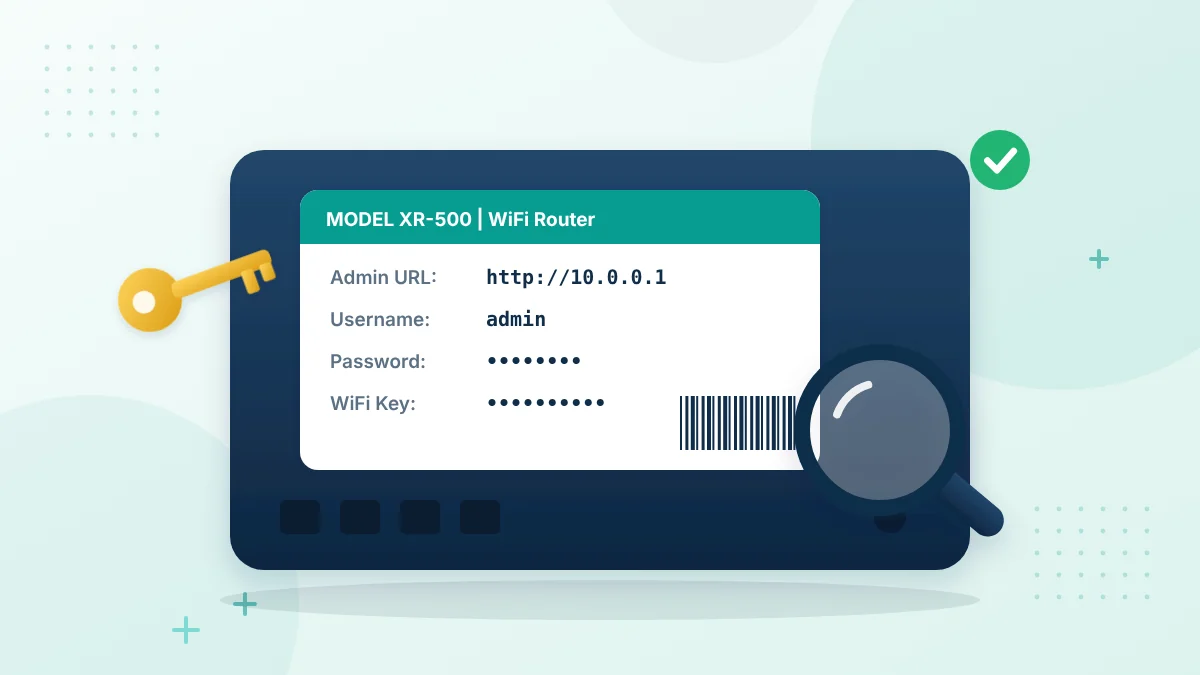
The 10.0.0.1 default password is not the same for every router. It depends on the manufacturer, model, internet provider and how the device was originally configured. Start by checking the sticker on the back or bottom of your router. It may show the address, username, password and WiFi details. Use the credentials printed for your own device instead of trying random combinations found online. Also remember that 10.0.0.0.1 is incorrectly formatted. If you entered that address remove the.0 and use 10.0.0.1.
Where Can You Find the Default Password?
Most people look online for a password but one login does not work for every router. Manufacturers and internet providers can use credentials even when their devices share the same admin IP.
Where to Find Router Login Details
Check the following places to find the router address, username or administrator password.
- The label underneath or behind the router
- The router’s installation card
- The original box or user manual
- Documents supplied by your internet provider
- The provider’s account or router-management app
- Details saved by the person who installed the network
The administrator password may be different from the password used to connect devices to the WiFi network.
Some routers do not have an username. Others ask you to create an administrator password during the setup. Follow the instructions shown on your device rather than assuming that a commonly shared password will work.
How to Use the 10.0.0.1 Admin Password
Before entering any login details connect your phone or computer to the router’s WiFi. You can also use an Ethernet cable on a computer. Open a browser and type:
Enter it in the address bar, where website addresses normally appear. If you put it in a search box the browser may display search results of opening the router panel. When the login screen appears, enter the administrator details printed on the device. Provided during setup. Pay attention to capital letters, numbers and special characters. A small typing mistake is often enough to cause a ” password” message. Only log in to a router that you own or have permission to manage.
Admin Password and WiFi Password Are Different
The WiFi password lets a phone, laptop or television connect to the network. The admin password protects the router’s control panel. These passwords may look similar, but they serve different purposes. Entering the WiFi key on the admin login page may therefore fail.
Admin Password
Use this password when opening the router settings or administrator control panel.
- Admin password
- Login password
- Web password
- Device access code
WiFi Password
Use this password when connecting a phone, laptop, television or another device to the wireless network.
- WiFi password
- Wireless key
- WLAN key
The router label may show both details. Use the value marked for administration or device access when opening the settings panel. Use the WiFi or wireless key only when joining the network.
Why Is the Default Password Not Working?
A failed login does not always mean that the router is faulty. In cases the original credentials were changed during installation.
The Password Was Changed Earlier
Your internet provider, network installer or another authorized user may have created a password. Once changed the factory password printed in a manual may no longer work. Ask the person who manages the network before attempting a reset.
You Are Using the WiFi Password
Check whether the password comes from the section of the router label. The WiFi key may not provide access to the admin dashboard. Look for an admin, login or device-access password.
The Username or Password Was Typed Incorrectly
Passwords can be case-sensitive. Check confusing characters such as I, lowercase l, number 1 letter O and number 0. Typing the credentials manually can help if copied text contains a space.
Your Router Uses Another Login Address
The page at 10.0.0.1 will only open when your router uses that address. If the login screen does not appear all the password may not be the problem. Check the network information on your phone or computer. The value shown beside Router or Default Gateway is normally the address you should open.
The Browser Saved Old Details
A browser may automatically fill in a password. Delete the filled entry. Type the current credentials again. You can also test the page in a browsing window. This helps confirm whether saved login data is causing the issue.
How to Change the Default Admin Password
Keeping factory login details for a long time is not a good idea. Anyone already connected to the network may try to access the settings if those details are widely known. After logging in, follow these steps:
- Open the account settings Open the Administration, System or Account section.
- Find the password option Look for the administrator password or login password setting.
- Enter the current password Enter your current admin password if the router requests it.
- Create a strong new password Choose a long, unique password that is difficult to guess.
- Confirm and save Enter the new password again if requested, then save the changes.
- Store the details privately Keep the new login details in a password manager or another secure, private place.
Menu names vary between router models. Avoid changing network settings while searching for the administrator password option.
Choose a password that is hard to guess Do not use your name, phone number, WiFi name or simple number patterns. A long password using unrelated words, numbers and symbols can be easier to remember while remaining difficult for others to guess.
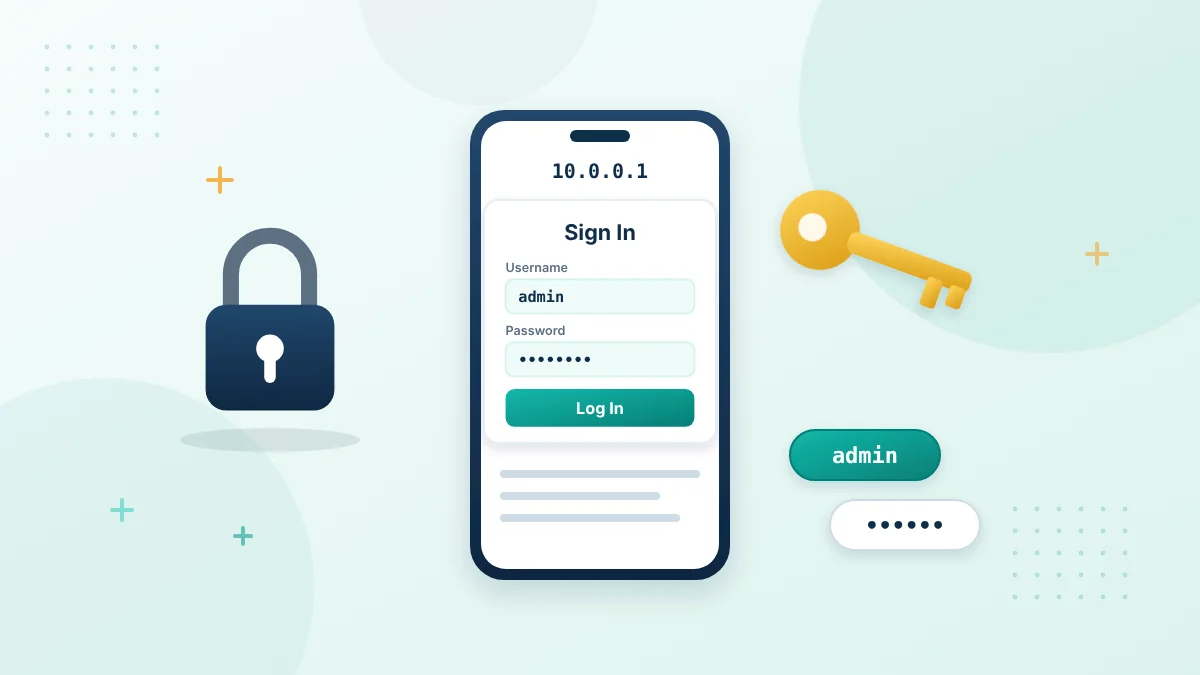
Before you log in
Use the Right Admin Details
The admin password opens the router settings. It is not the same as the WiFi password that connects your phone or laptop.
- Type the username exactly as printed
- Remember that passwords are case sensitive
- Avoid repeated wrong attempts
- Change the default password after login
What If You Forgot the Changed Password?
First check whether the password was saved in your browser or password manager. You can also ask the family member, employee, installer or network administrator who last changed it. Some internet providers allow customers to manage the router through an account or mobile app. Use that option only if it is officially provided for your connection. A factory reset should be the step.
It can remove the WiFi name, wireless password, parental controls, guest network and other custom settings. Some devices may also require provider- configuration before the internet works again. If you are unsure, contact your internet provider. Check the model’s manual before resetting anything.
Is 10.0.0.0.1 the Password Page?
No. 10.0.0.0.1 Is not an IPv4 address because it contains five number groups. A normal IPv4 address contains four. The correct format is:
10.0.0.1
If the correct address opens a login form the connection is working and you can focus on the credentials. If no page appears, confirm that you are connected to the router and check its actual gateway address.
Frequently Asked Questions
What is the default password for 10.0.0.1?
There is no universal default password for 10.0.0.1. Check the router label, manual or information supplied by your internet provider.
Is the password printed on the router?
It may be. Look underneath or behind the device for an admin password, login password or access code. If the password has been changed, the printed details may no longer work.
Can I use my WiFi password to log in?
Only if your router was specifically configured that way. In many cases, the WiFi and administrator passwords are different.
Why does the login page reject the password?
The password may have been changed, entered incorrectly or replaced during the router’s setup. Check capital letters and accidental spaces, and make sure you are not using the WiFi key instead of the admin password.
Should I reset the router if I forget the password?
Not immediately. Check saved passwords and contact the network administrator or internet provider first. A factory reset may erase your internet and WiFi settings.
Is 10.0.0.0.1 the same as 10.0.0.1?
No. 10.0.0.0.1 has five number groups and is not a valid IPv4 address. Use 10.0.0.1 if that is your router’s address.
Final Check
Connect to the WiFi open 10.0.0.1 in the browser address bar and use the administrator details assigned to your router. Check the device label carefully because the admin password may differ from the WiFi password. If the factory details fail do not keep guessing or reset the router immediately. Confirm whether the password was changed and contact your provider when you cannot recover authorized access safely.
Common Default Router Usernames and Passwords
Older routers often shipped with simple default logins. Many newer models print a unique password on the label or ask you to create one during setup. Use this table only as a starting point.
| Brand or provider | Common default username | Common default password |
|---|---|---|
| Xfinity gateways | admin | password |
| Netgear | admin | password |
| Linksys | admin or blank | admin |
| D-Link | admin | blank |
| TP-Link (older models) | admin | admin |
| Many newer routers | Printed on the label | Unique password on the label or set during setup |
If none of these work, the password was probably changed. Do not keep guessing, because some routers lock the login page after several failed attempts.
How to Change the 10.0.0.1 Default Password
- Log in to http://10.0.0.1 with the current admin username and password. Our 10.0.0.1 phone and computer login guide explains each step.
- Open the Administration, Management or System menu.
- Find the router password or admin password section.
- Enter the current password, then type a new strong password twice.
- Save the change and log in again with the new password.
- Store the new password in a password manager or another safe place.
Changing the 10.0.0.1 default password is one of the most important security steps for any router. Otherwise, anyone on your network could try the factory login.
How to Create a Strong Router Admin Password
- Use at least 12 characters.
- Use a long passphrase or mix words, numbers and symbols.
- Do not reuse your WiFi password or your email password.
- Avoid names, birthdays, phone numbers and the router model.
- Keep it different from the default password printed on the label.
A long passphrase made of several unrelated words is easier to remember and harder to guess than a short complex password.
Default Password vs WiFi Password vs Account Password
Router owners often mix up three different passwords:
- Admin password: opens the 10.0.0.1 router settings.
- WiFi password or network key: lets phones and laptops join the WiFi network.
- Internet provider account password: signs you in to the provider website or app.
The label on many routers shows both the admin password and the WiFi key, so read the field names carefully.
When Should You Reset the Router?
A reset is the last option when you cannot recover the admin password any other way. Before you press the reset button, try these steps:
- Check the router label and the manual.
- Ask the person who installed or configured the router.
- Contact your internet provider if they supplied the gateway.
- Look for the password saved in your browser or password manager.
If you still need to reset, hold the reset button while the router is on, usually for 10 to 30 seconds depending on the model. Check the manual for the exact time. The router restarts with its factory settings, including the default login and default WiFi name, so you will need to set up the internet connection and WiFi again.
Where to Find the Router Label
Most routers have a sticker on the bottom, back or side. Gateways from internet providers sometimes place it near the power socket. The label may list the admin URL, the default username and password, the WiFi name and the WiFi key.
Take a photo of the label and keep it somewhere safe. If the sticker fades or peels off, you will still have the details when you need them.
What to Do If the 10.0.0.1 Default Password Does Not Work
- Make sure you are on the correct page by checking that the address bar shows 10.0.0.1.
- Type the password slowly and check the Caps Lock key.
- Try the username exactly as printed, including lowercase letters.
- Ask anyone who may have changed the password during setup.
- Contact your internet provider if they installed or manage the gateway.
If you still cannot sign in, follow our guide on what to do when you forgot your 10.0.0.1 admin password before you consider a reset.
10.0.0.1 Default Password FAQs
Is the 10.0.0.1 default password the same for every router?
No. It depends on the brand, model and internet provider. Always check the label on your own router first.
Will the default password work after a firmware update?
Usually yes. Firmware updates normally keep the current admin password. Only a factory reset restores the default login.
Can someone else use my router’s default password?
Anyone connected to your network could try it. That is why you should change it after your first login and use strong WiFi security.
What if the router label is missing or damaged?
Check the manual, the box or the support page for your model. If your internet provider supplied the router, they can usually confirm the default login for you.
Related Guides for the 10.0.0.1 Default Password
These guides help you sign in once you know the 10.0.0.1 default password.
Useful references: CISA guide to securing wireless networks and RFC 1918 private address ranges.
Still can’t sign in?
Make sure you are using the correct router address before trying a reset.