Router Admin Guide
10.0.0.1 Admin Login – Piso WiFi Pause Time
Open your router settings the right way, avoid the 10.0.0.0.1 typing mistake and use Piso WiFi Pause Time without losing minutes.
- Works in any browser
- No app needed
- Piso WiFi tips
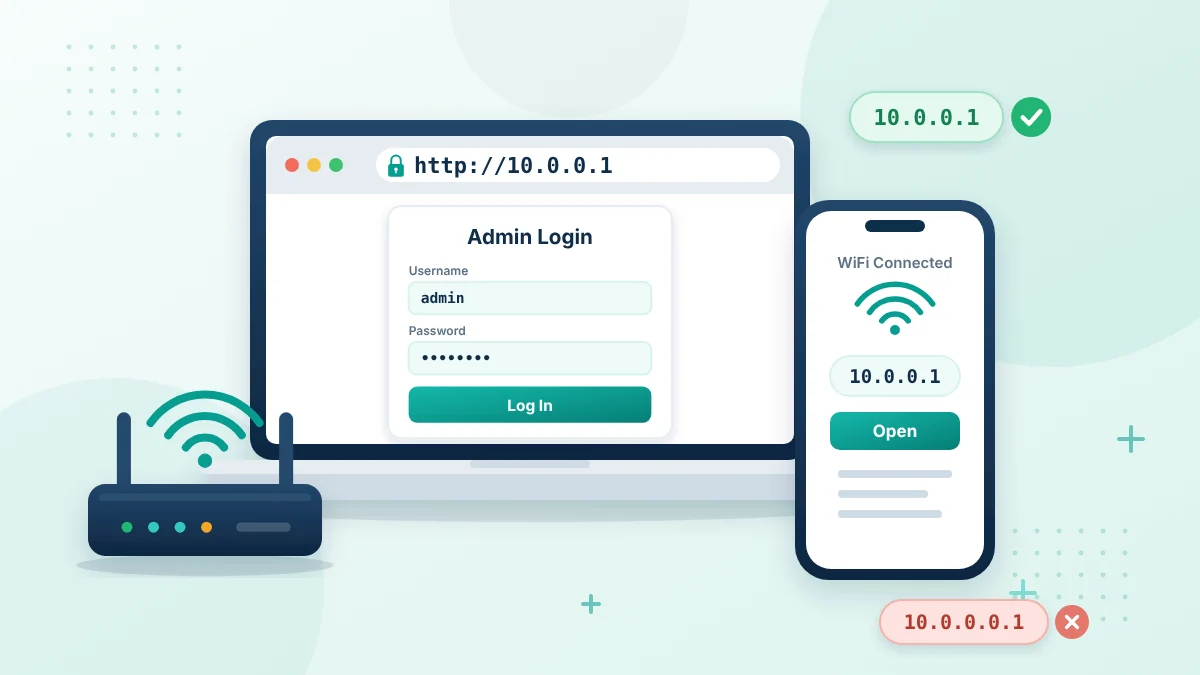
To open your router settings, connect your phone or computer to its WiFi. Type 10.0.0.1 in the browser address bar. If the router uses this address, its admin login page should appear.
Quick access details:
-
Correct address:
10.0.0.1 -
Incorrect address:
10.0.0.0.1 - Connection needed: WiFi or Ethernet
- App needed: No
Open 10.0.0.1 Admin Panel
The button only opens a local address. It will work when your device is connected to a router or Piso WiFi system that uses 10.0.0.1.
If the page does not load, turn off mobile data, reconnect to the correct router WiFi and try again.
What Is 10.0.0.1?
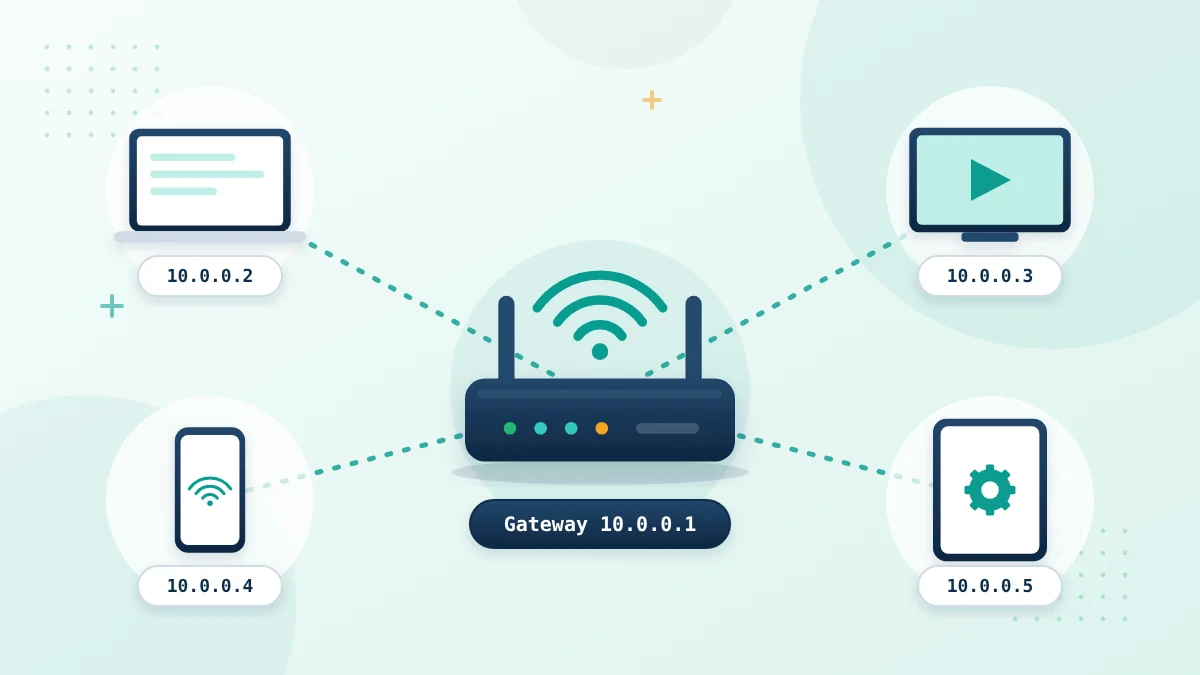
10.0.0.1 is an IP address. Some routers, gateways and Piso WiFi systems use it as the entrance to their settings page. It is not a website on the public internet. The page comes from the router connected to your phone or computer. This is why you must join the WiFi network before opening it. Once logged in, you may be able to change the WiFi password, rename the network, check devices and manage other settings. The available options depend on your router model. Not every router uses this address. Some devices use 192.168.0.1, 192.168.1.1 or another local IP instead.
10.0.0.1 and 10.0.0.0.1 Are Not the Same
This small difference causes a lot of confusion.
A standard IPv4 address has four number groups. Each group is separated by a dot. The correct address follows that format:
The entered 10.0.0.0.1 has five groups:
A browser cannot use it as an IPv4 address. It may show Google results, a blank page or a “site can’t be reached” message.
Commonly Mistyped Router Addresses
| Typed Address | Status | Correction |
|---|---|---|
| 10.0.0.1 | Correct format | No change needed |
| 10.0.0.0.1 | Extra zero | Use 10.0.0.1 |
| .10.0.0.1 | Extra opening dot | Remove the opening dot |
| 10.0.0.1. | Extra final dot | Remove the final dot |
| 10.0.0.l | Letter “l” used | Replace it with the number “1” |
Swipe left or right to view the complete table.
You do not need to repair or restart the router when the only problem is a typing mistake. Correct the address first.
How to Log In to 10.0.0.1
The login normally takes less than a minute when the address and network connection are correct.
1. Connect to the Router
Join the WiFi network of the router you want to manage. A computer can also be connected through an Ethernet cable.
If you are using a phone, check that it has not switched to mobile data. The router page is available through the local network, not through your SIM connection.
2. Open Your Browser
You can use Chrome, Firefox, Safari, Edge or another browser already installed on your device. A separate router-login app is not required.
3. Enter the Correct Address
Tap the browser’s address bar and enter:
Do not add www or .com. Also make sure you are typing in the address bar rather than a Google search box.
4. Enter the Admin Details
The router should display a login form. Enter its administrator username and password. Look at the label on the back or bottom of the router if you do not know these details. The manual or your internet provider may also have the information.
5. Open the Settings
A successful login takes you to the router dashboard. From there you can view the options supported by your device. Menu names are not identical on every router. A setting called “Wireless” on one model may appear as “WiFi” or “WLAN” on another.
What Is the Default Username and Password?
There is no single login combination for every 10.0.0.1 admin page. Credentials can change between brands, models and internet providers. The person who installed the router may also have replaced the password. In that case the factory details will no longer work.
Check these places:
Where to Find Router Login Information
Check these sources if you do not know the router’s admin address, username or password.
- The label underneath or behind the router
- The device user manual
- Your internet provider’s support information
- The router installation card
- The person who originally configured the network
Do not repeatedly guess the administrator password. Too many incorrect attempts may temporarily lock the router login page.
The admin password and WiFi password can be different. The WiFi password connects phones and computers to the network. The admin password gives access to the router settings. Do not factory-reset the device just to test a password. A reset can remove working settings and leave the entire network disconnected.
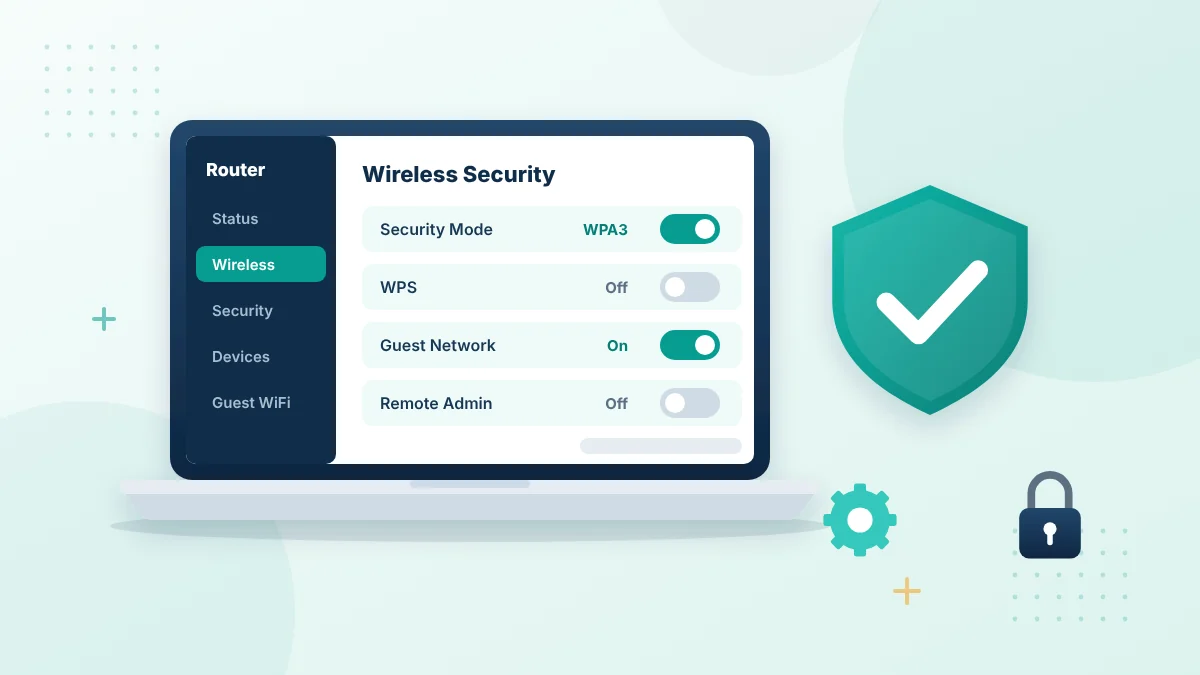
After login
Manage Your WiFi Safely
The router dashboard lets you control your network. Change only the settings you understand and note the old values first.
- Rename your WiFi network (SSID)
- Set a strong WiFi password
- Use WPA2-AES or WPA3 security
- Turn off WPS if you do not need it
What Can You Change After Login?
The settings available through 10.0.0.1 depend on the router. Most dashboards still provide some common options.
Change the WiFi Name
The visible name of a network is called the SSID. You can usually edit it under WiFi, Wireless or WLAN settings. Choose a name that’s easy for your family or staff to recognize. Avoid putting details such as your complete name, phone number or address in it.
Create a New WiFi Password
Open the wireless security settings. Find the password, security key or pre-shared key field. Enter the new password and save the change. Your current device may disconnect as soon as the new password is applied. Reconnect it using the updated details.
Check Connected Devices
The router may show a list of phones, computers, smart TVs and other equipment. The list can include device names, local IP addresses and MAC addresses. Some devices show generic or unclear names. Confirm what a device is before blocking it.
Block Unknown Users
If you find a connection that does not belong to anyone you trust, the router may provide a block or access-control option. Changing the WiFi password can also remove users who still know the old one. Afterward your own devices will need the new password.
Create Guest WiFi
A guest network is useful when visitors need internet access. It can keep them separate from computers, cameras and storage devices on your network.
Update Router Settings
Some admin panels include firmware updates, DNS, DHCP, parental controls and bandwidth options. These are useful, but they should not be changed randomly. Write down the values before editing an advanced setting. That small step can save time if the connection stops working.
How to Change the WiFi Password
The exact menu names vary by router, but the basic method is usually similar.
How to Change Your Router WiFi Password
- Connect your phone or computer to the router.
- Open 10.0.0.1 in your browser’s address bar.
- Enter the correct administrator username and password.
- Find the WiFi, Wireless or WLAN settings.
- Select the network band if more than one option is shown.
- Find the password, security key or pre-shared key field.
- Enter a strong new WiFi password.
- Select Save or Apply to confirm the change.
- Reconnect all your devices using the new WiFi password.
After saving the new password, your connected devices may disconnect automatically. This is normal—reconnect them using the updated password.
Use a password that’s difficult to guess. Avoid options such as your name, phone number or 12345678. If the router has separate 2.4 GHz and 5 GHz networks, check whether both use the new password before leaving the page.
What Is 10.0.0.1 Piso WiFi?
A 10.0.0.1 Piso WiFi page is a portal used by some hotspot and vendo systems. It may be designed for the hotspot owner, the customer or both. The administrator area can contain settings for vouchers, connected users, network access and the vendo machine. The customer page may show the session and remaining time. These two areas should not be confused. Administrator controls are for the owner or an authorized operator. Customers should only use the controls on the normal session page. If you searched for 10.0.0.0.1 Piso WiFi, remove the extra .0 because the correct format is 10.0.0.1.
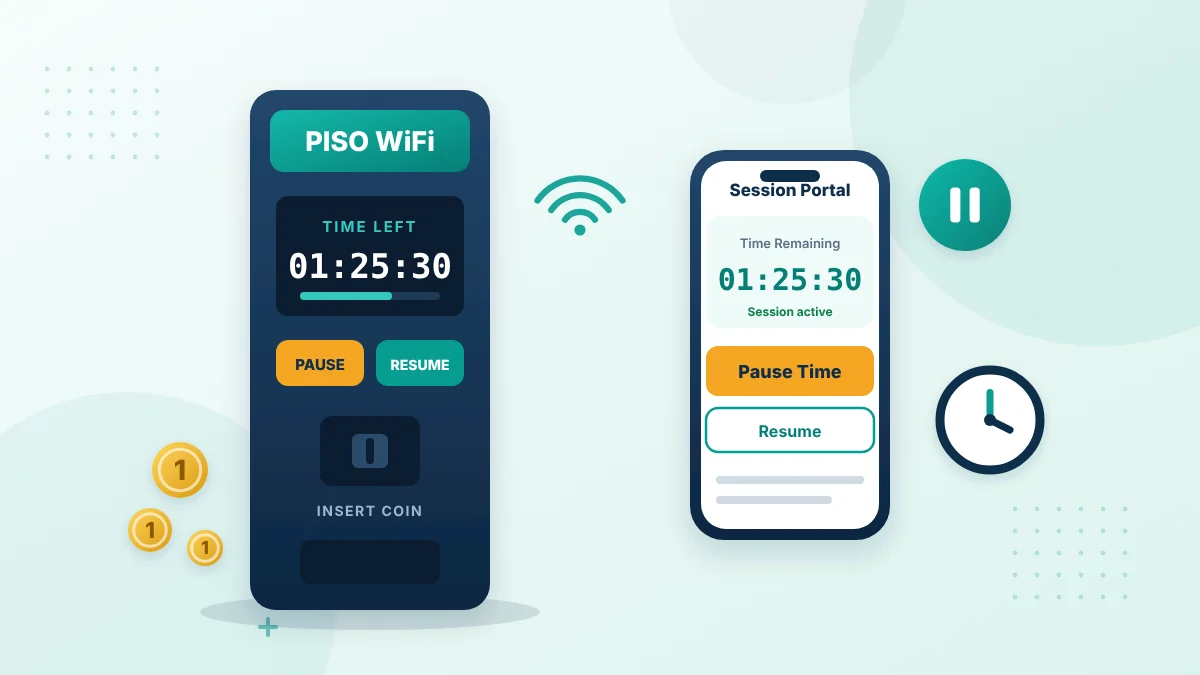
Piso WiFi
Pause Your Session and Save Minutes
Some Piso WiFi hotspots let customers pause an active session from the 10.0.0.1 portal and resume it later.
- Stay connected to the hotspot WiFi
- Open 10.0.0.1 and tap Pause Time
- Tap Resume when you need internet again
How Does Piso WiFi Pause Time Work?
10.0.0.1 Piso WiFi Pause Time may allow a customer to stop a session from using its remaining minutes. The session can be resumed later from the hotspot portal. This feature is not available on every Piso WiFi system. The owner can decide whether Pause Time is enabled.
Pause an Active Session
Connect to the Piso WiFi network where your session is running. Open 10.0.0.1. Look for a button such as Pause Time, Pause or Stop Time. Tap it once. Wait for confirmation. Check the remaining time to make sure the session has actually paused.
Resume the Session
Reconnect to the hotspot and open its portal again. Select Resume, Continue or the available equivalent. Internet access should return after the session becomes active. Check the timer instead of assuming that the first tap worked.
Why Is Pause Time Not Working?
A 10.0.0.1 pause time problem does not always mean the hotspot is broken. Start with these simple checks.
You Entered 10.0.0.0.1
Search terms such as 10.0.0.0.1 pause time and 10.0.0.0.1 Piso WiFi time include the wrong address. Enter 10.0.0.1 in the browser address bar.
You Are Connected to Another WiFi Network
Open the WiFi settings on your phone and check the network name. The session portal normally works on the hotspot where the session was created.
There Is No Active Session
A Pause Time button may appear after a session starts. It can also disappear when the voucher or remaining time expires.
The Operator Disabled Pause Time
Customers cannot activate the feature themselves when the hotspot owner has turned it off. Ask the operator whether session pausing is supported.
The Browser Shows Old Information
Refresh the page. Wait for the status to update. If that does not help, close the tab reconnect to the hotspot and open the portal again.
The Hotspot Uses Another Address
Some Piso WiFi systems use a different local gateway. Check the network details on your device. Ask the operator for the correct portal address.
Why Is 10.0.0.1 Not Opening?
First check whether the page is completely unavailable or the login form appears but rejects your password. Each problem has different causes.
Your Device Is Not Connected to the Router
A phone using data cannot normally open a local router page. Join the router’s WiFi network first.
The Router Uses Another IP Address
10.0.0.1 will not work when the router is set up with a different gateway address. You need to find the Router or Default Gateway value in your network settings. If the address was entered in a search bar, Google results may appear. To fix this tap the browser address bar and type http://10.0.0.1 directly. A VPN might be causing the issue. Some VPNs route browser traffic away from the local network. Try pausing the VPN temporarily, test the address, then turn it back on after you’re done.
The router may not be responding. Check the power light, make sure the power cable is plugged in and verify the Ethernet connection. If the router was recently turned on give it a few moments to finish starting.
If you see the login form but cannot get in, the IP and connection are likely working. Double-check the label on the router. Ensure you are entering the admin password, not the wireless password.
How to Find Your Router’s IP Address
You can confirm the gateway without guessing. Here’s how to do it on common devices:
On Windows
Open Command Prompt, type ipconfig and press Enter. Look under the WiFi or Ethernet connection for Default Gateway.
On Android
Go to WiFi settings and select the network you are connected to. Check the details for Gateway or Router. The exact menu location can vary depending on the phone brand.
On iPhone or iPad
Open Settings > Wi-Fi. Tap the information icon next to your network and look at the value shown beside Router.
On macOS
Open network settings, choose the connection and view TCP/IP details. The number next to Router is the gateway address.
Restart or Factory Reset?
Restarting a router simply turns it off and then back on. It usually keeps your settings and can help fix temporary issues. A factory reset is different. It returns the device to its original factory setup and deletes your custom settings.
Router Settings You Should Save
Before resetting or changing your router, record the following information so it can be restored later.
- The custom WiFi network name
- The current WiFi password
- Any changed administrator password
- Guest-network settings
- Parental-control settings
- Port-forwarding rules
- Internet or ISP connection settings
A factory reset may remove these custom settings. Save or photograph the important details before resetting the router.
Use a factory reset only if normal troubleshooting does not work and you know how to set up the router again. It is safer to check the manual or contact your internet provider first.
Simple Router Security Tips
Change the factory admin password after your successful login. Keeping the default password makes it easier for someone on the network to access the settings page. Use WPA2-AES or WPA3 security if supported. Turn off WPS if you don’t need it. Avoid enabling remote administration unless you have a clear reason to do so. Only install firmware updates from the router manufacturer or your internet provider. A file made for a different model can damage your router. It is also good practice to check the list of connected devices occasionally. An unfamiliar device might be harmless. It should still be identified.
Other Common Router Login Addresses
Your router might use a different local address if 10.0.0.1 does not open.
Other Common Router IP Addresses
If 10.0.0.1 does not open, your router may use one of these local addresses.
| Address | Common Purpose |
|---|---|
| 192.168.0.1 | Router administration |
| 192.168.1.1 | Home router settings |
| 192.168.1.254 | Some ISP gateways |
| 192.168.100.1 | Some modem interfaces |
| 10.1.10.1 | Some business and ISP routers |
Swipe left or right to view the complete table.
Do not keep guessing numbers. The address shown as your Default Gateway is the one that matters.
Frequently Asked Questions
What is 10.0.0.1 used for?
It is an IP address used by some routers, gateways and Piso WiFi systems for local management.
How do I open the 10.0.0.1 admin page?
Connect to the router, open a browser and type http://10.0.0.1 in the address bar. Enter the correct admin credentials when the login page appears.
Is 10.0.0.0.1 an IP address?
No. It has five number groups. The correct format is 10.0.0.1.
Can I open 10.0.0.1 on my phone?
Yes, as long as your phone is connected to the router’s or hotspot’s WiFi network.
Do I need internet access?
The local admin page usually opens without internet service. You still need a working connection to the router.
What is the default password for 10.0.0.1?
There is no default password that works for all routers. Check the router label, user manual or instructions from your internet provider.
Is the admin password the same as the WiFi password?
Not always. One password protects the router settings, while the other allows devices to connect to the WiFi network.
Why am I seeing Google results?
The IP address may have been entered into a search box. Always type 10.0.0.1 directly into the browser address bar.
Why is the Piso WiFi Pause Time button missing?
There may not be an active session, the operator may have disabled the feature, or the hotspot may use a different portal.
Does every router use 10.0.0.1?
No. Check the Router or Default Gateway value on your connected device to find the correct local address.
Final Check
Make sure you are connected to the WiFi network. Enter 10.0.0.1 without extra dots or zeros. If it does not open, confirm the default gateway before restarting or resetting anything. Once you reach the login page, use the administrator details and change only the settings you understand. For Piso WiFi Pause Time, make sure the session is active and that the hotspot operator has enabled the feature.
More 10.0.0.1 Admin Login Guides
Use these step-by-step guides together with the 10.0.0.1 admin login steps above.
Useful references: RFC 1918 private address ranges and CISA guide to securing wireless networks.
Can’t open 10.0.0.1?
Your router may use a different address. Find the default gateway on Windows, Android, iPhone or Mac.