Forgot Your 10.0.0.1 Admin Password? Try These Recovery Steps First
If you have forgotten your 10.0.0.1 admin password, do not factory‑reset the router right away. First check any saved passwords, the router label, the setup paperwork and any details given by your internet provider. The correct recovery method depends on the router model.
Some devices have a password printed on their label, while others ask the owner to create one during the setup. Only attempt to recover access to a router that you own or for which you are authorized to manage.
Confirm That the Login Page Is Working
Connect your phone or computer to the router via WiFi or Ethernet. Open a browser and type:
http://10.0.0.1
If the login form appears, the address and local connection are working. You can now focus on recovering the username or password.
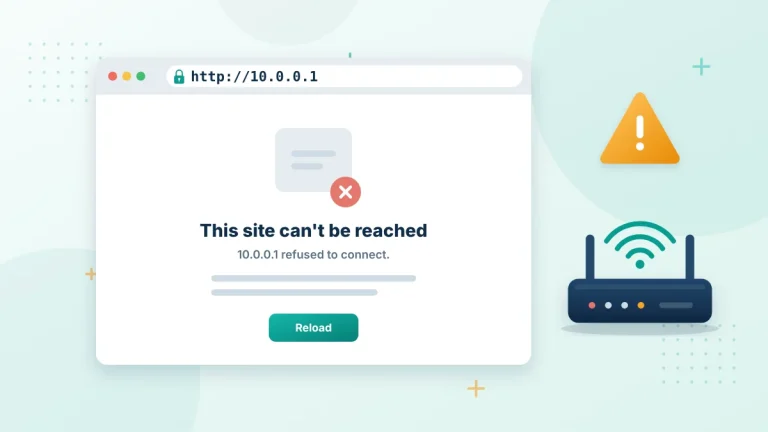
If the page does not load, you may have a connection problem instead. Confirm the network name. Check whether 10.0.0.1 is your actual Default Gateway. Do not enter 10.0.0.0.1. It contains an extra number group and is not a valid IPv4 address.
Check Which Password You Need
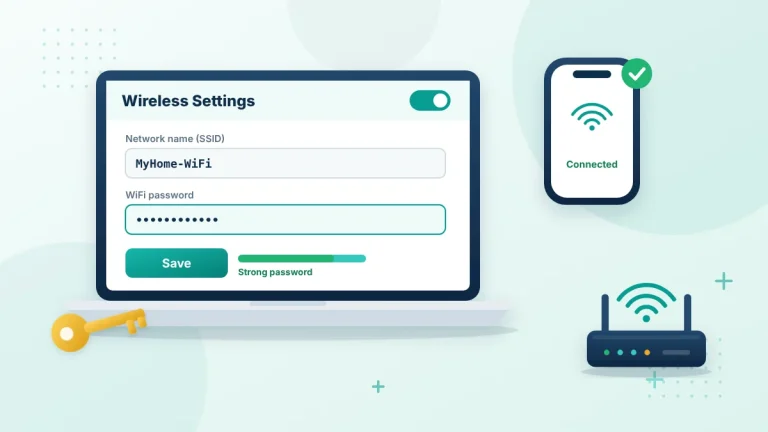
Router owners often confuse the WiFi password with the admin password. These details may be different even when they are printed on the label. The WiFi password connects phones, laptops and other devices to the network. The admin password protects the router’s settings panel.
| Look for labels such as: |
| Admin password |
| Login password |
| Web password |
| Device password |
| Access code |
| WiFi or WLAN key |
Use the device‑access value on the 10.0.0.1 login page. The wireless key will only work there if your router was specifically configured to use the same password.
1. Check Your Browser’s Saved Passwords
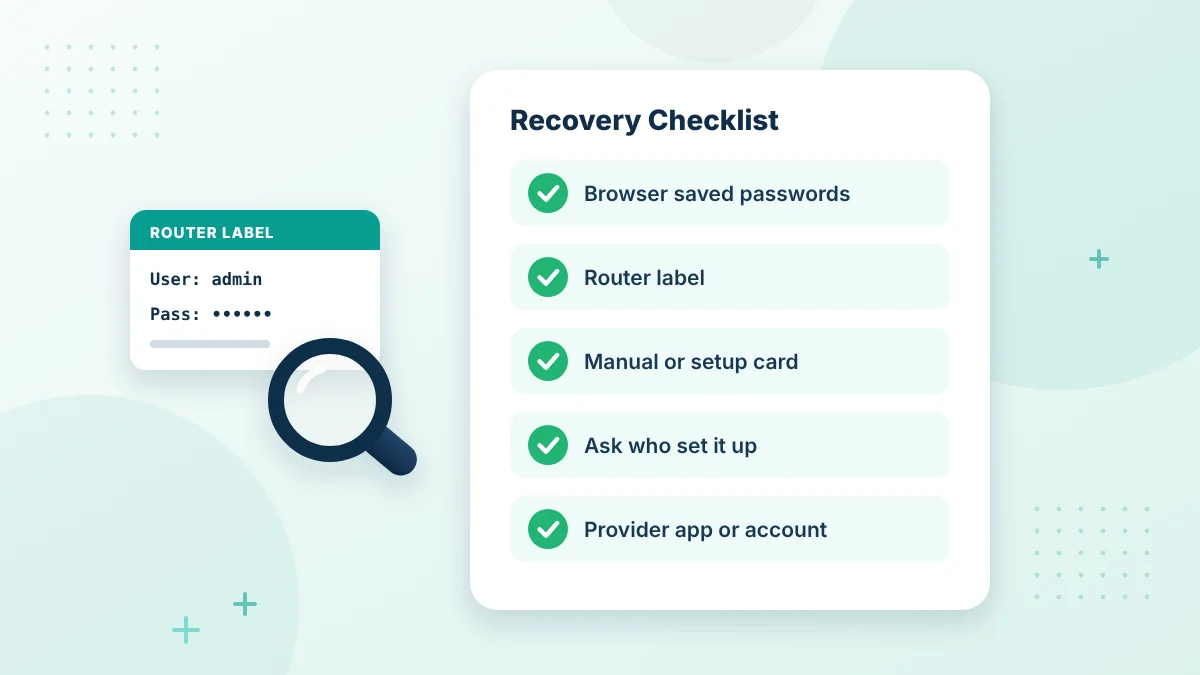
Your browser may have saved the login during an earlier visit. Open its password manager. Search for 10.0.0.1 or the router brand. Do not rely on automatic filling. The saved entry may be attached to another address or may contain an old password. If you find a match, check when it was saved before using it. Keep these details private. Do not share screenshots containing your network credentials.
2. Look at the Router Label
Check the back, bottom and sides of the device. The label may list the management address, administrator username and factory password. Read the characters carefully. A lowercase l can look like the number 1, while an uppercase O can resemble a zero.
The label may show the factory details. They will not work if someone changed the password during installation. Do not try credentials taken from the label of another router. Even devices from the same manufacturer can have different passwords.
3. Check the Manual and Setup Documents
Look through the router box, installation card or paperwork supplied with the connection. Some providers place login information on a card rather than on the device. A digital manual may also describe the approved password‑recovery method for your model. Match the model number before following its instructions. Avoid copying credentials from an online article. A password commonly used on one model may be incorrect for another.
4. Ask the Person Who Set Up the Router
The installer, network administrator or another family member may have changed the password during setup. Ask whether the new details were written down or stored in a password manager. For a workplace, school or shared property, contact the person responsible for the network. Do not reset equipment without permission because it may disconnect every user.
If you rent your home and the router belongs to the landlord, confirm who is allowed to manage it before making changes.
5. Check Your Provider’s App or Account
Some internet providers allow customers to view or change network settings through an app or online account. Available controls depend on the provider and equipment. Sign in through the provider’s confirmed website or app. Do not enter your account details on a page reached through a message or advertisement.
Look for options such as gateway management, device settings or admin access. If no recovery option appears, contact the provider’s support team.
6. Remove Incorrect Saved Login Details
A browser may continue entering an old password. Delete the filled username and password, then type the current details manually. You can also open a private browsing window and visit 10.0.0.1 again. This is a way to check whether old browser information is causing the failure. Pay attention to capitalization and unwanted spaces. Pasting a password can sometimes add a character at the beginning or end.
Restarting Will Not Recover the Password
Restarting simply turns the router off and back on. It may solve a loading problem, but it normally keeps the current admin password. A factory reset is different. It returns settings to their original state. Do not confuse the power button with the reset control. If the login page works but rejects your password, restarting will not change it. Continue with the recovery options instead.
Factory Reset Should Be the Last Option
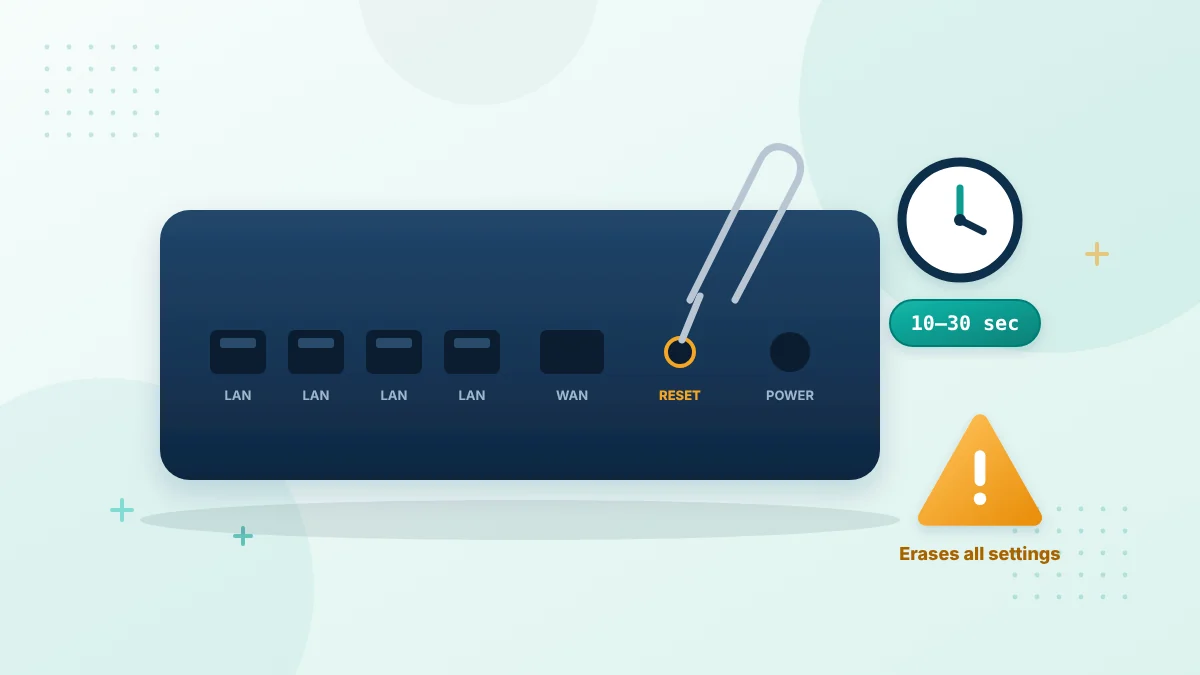
Consider a factory reset only when you own the router, every safer option has failed and you know how to configure it again.
| A reset may remove: |
| The custom WiFi name |
| The wireless password |
| The changed admin password |
| Guest‑network settings |
| Parental controls |
| Port‑forwarding rules |
| Provider‑specific internet settings |
The reset method and required button‑press time vary by model. Check the manual or ask your provider before continuing. After a reset, reconnect using the factory WiFi details shown on the router. Then open its gateway and complete the initial setup. Change the admin password once access is restored.
Create a Better Admin Password
Choose a password that you do not use for email, banking or social media. Avoid names, birthdays, phone numbers and simple patterns. Store it in a trusted password manager or another private location. Do not place it on a note beside the router. The admin password should also remain separate from the WiFi password. This reduces the chance that a visitor who knows the key can access the settings.
Frequently Asked Questions
What is the default password for 10.0.0.1?
There is no single default password for every router. Check the router label, manual or information supplied by your internet provider.
Can I recover the password without resetting the router?
Possibly. Check saved browser passwords, setup documents, provider tools and the person who configured the network.
Is my WiFi password the admin password?
Not necessarily. They normally serve different purposes and may have different values.
Will restarting restore the default password?
No. A normal restart usually keeps the existing login details and other settings.
Does a factory reset remove WiFi settings?
It commonly removes the custom WiFi name, password and other saved configuration. The exact result depends on the router.
Why does 10.0.0.1 reject the password?
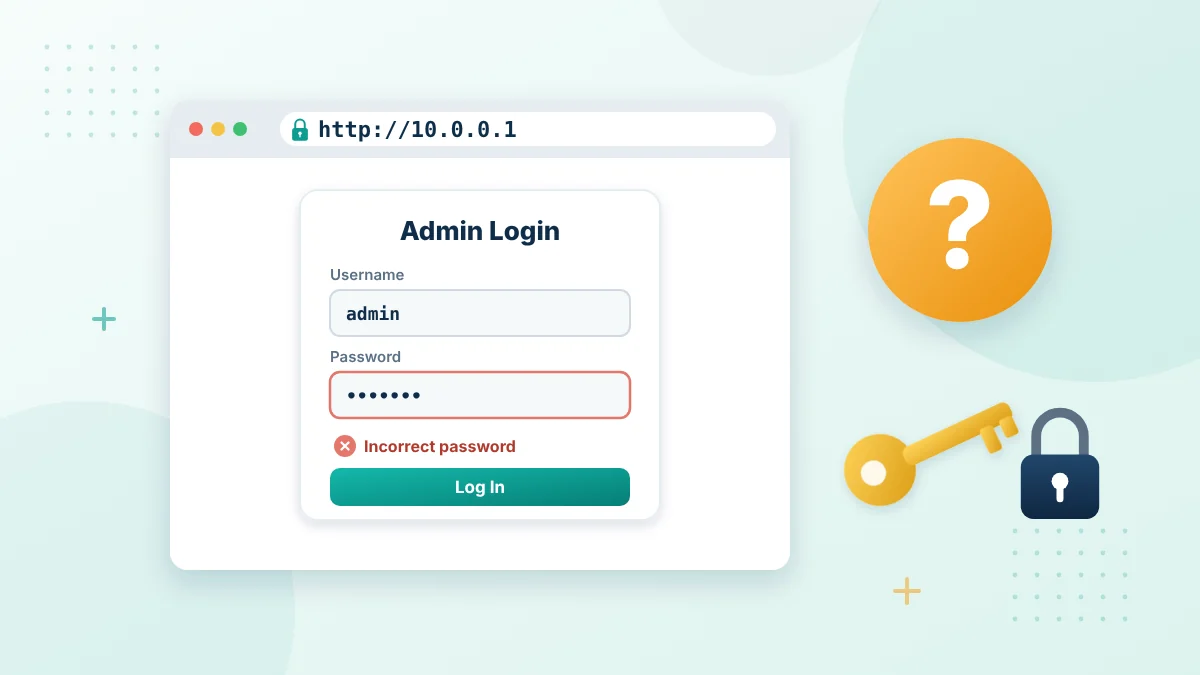
The factory password may have been changed, typed incorrectly or replaced during setup.
Default Password vs Changed 10.0.0.1 Admin Password
If the router still uses its factory settings, the 10.0.0.1 admin password is usually printed on the label. Once someone changes it, the label is no longer correct. That is why the label works on a new router but often fails on a router that was set up by an installer, a family member or an internet provider.
Our 10.0.0.1 default password guide lists common factory logins and explains where to find them.
Signs That Someone Changed the Admin Password
- The password printed on the label is rejected.
- The router was installed by a technician or another person.
- The WiFi name is different from the one on the label.
- Your provider app shows a custom setup for the gateway.
In these cases, ask the person who set up the network before you try anything else.
Questions to Ask Your Internet Provider
- Did you set a custom admin password when you installed the gateway?
- Can I view or reset the admin password in your app or online account?
- Is the gateway managed remotely, and can you reset the login for me?
- Will a factory reset remove the settings needed for my internet connection?
Write down the answers so you have them the next time you need the 10.0.0.1 admin password.
How to Avoid Losing the 10.0.0.1 Admin Password Again
- Save the new password in a password manager.
- Write it on a card and keep it in a safe place at home, not on the router.
- Use a long passphrase that you can remember.
- Take a photo of the router label before you change anything.
- Note who changed the password and when.
What to Do After You Recover Access
- Change the 10.0.0.1 admin password to a new, strong password.
- Check the connected devices list for anything you do not recognise.
- Review the WiFi password and the security mode.
- Install any available firmware update.
- Turn off remote management if you do not use it.
These quick checks make sure nobody else used the router while the password was unknown. For the full sign-in process, see our 10.0.0.1 phone and computer login guide.
Final Words
When you forget your 10.0.0.1 admin password, check saved credentials, the router label and provider recovery options. A reset should never be the first response. If a factory reset becomes necessary, follow the official instructions for your model and prepare to reconnect and configure the network afterward.
Related Guides for the 10.0.0.1 Admin Password
Use these guides after you recover your 10.0.0.1 admin password.
Useful references: CISA guide to securing wireless networks and CISA advice on avoiding phishing.