10.0.0.1 Login Page Not Opening? Fix Connection Refused and Timeout Errors
When the 10.0.0.1 login page is not opening, first check your WiFi connection and the address entered in the browser. Your phone or computer must be connected to the router that uses 10.0.0.1. A “connection refused” or “timed out” message does not normally involve your admin password. These errors appear before the login form loads. Work through the connection checks first. Leave a factory reset until the end.
What Do Connection Refused and Timeout Mean?
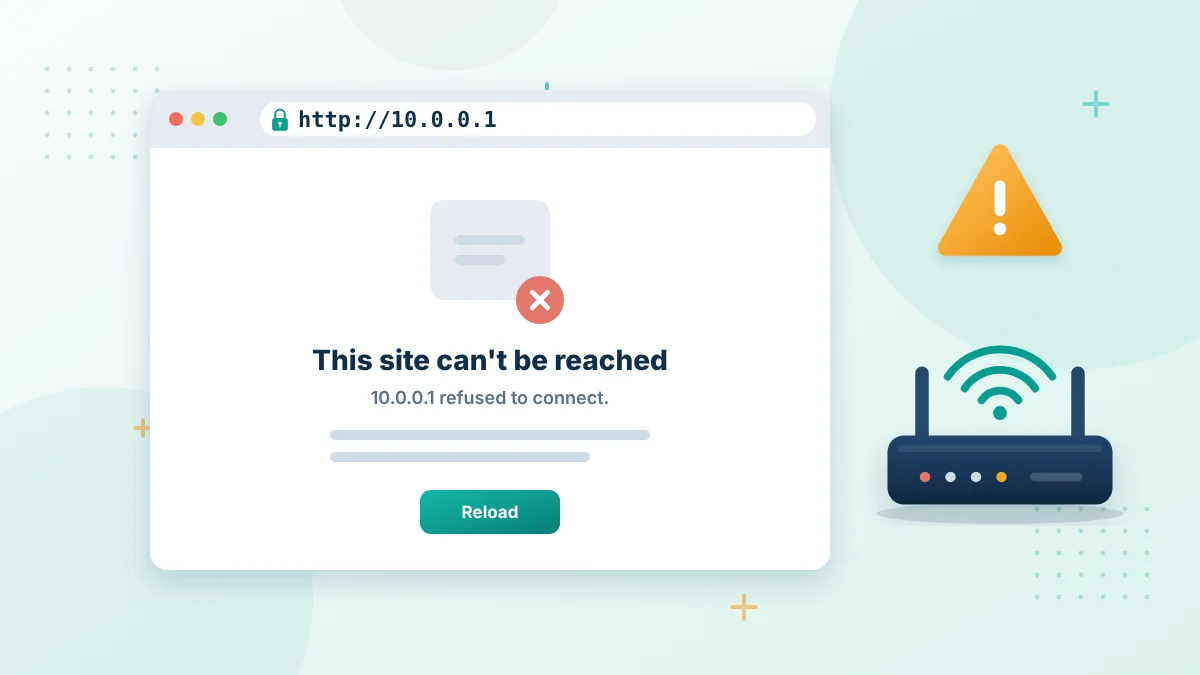
A connection refused message means your device reached the address, but no admin page responded in the expected way. The router may use a different IP, or its management service may not be available. A connection timed out error means the browser waited but received no response. This often happens when you are on the wrong network, the router is unavailable or local traffic is being redirected. If the login form appears but rejects your password, that is a separate credentials problem. Check the router label or your saved admin details instead.
1. Connect to the Correct WiFi Network
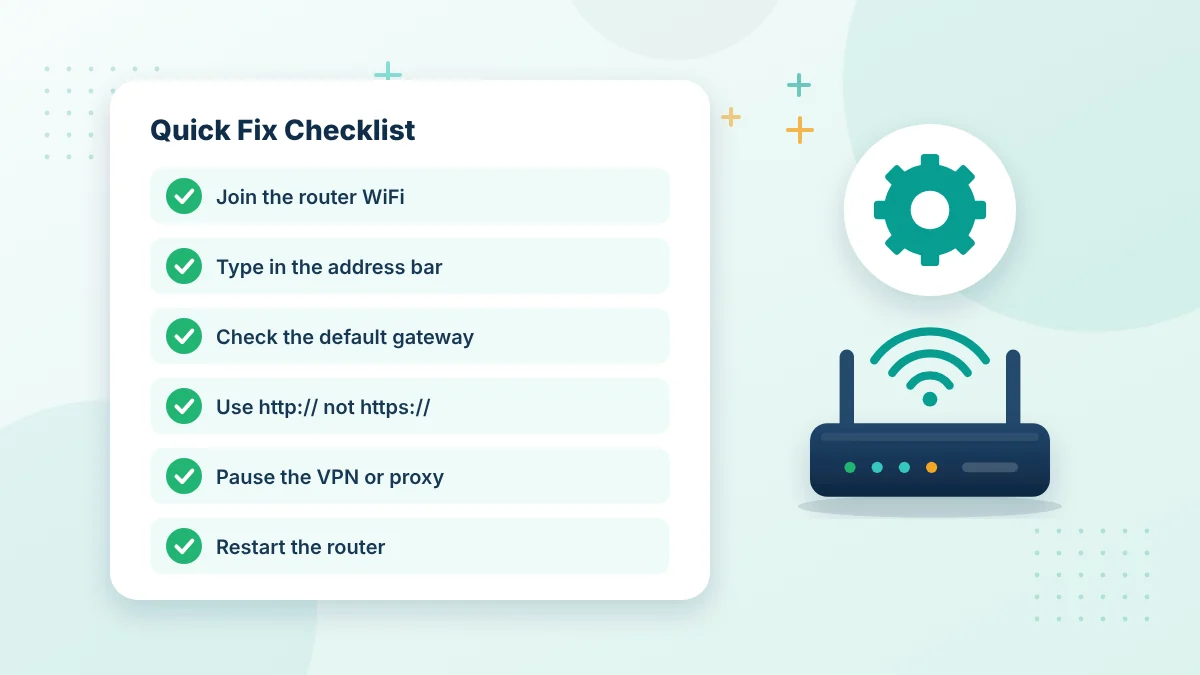
Start with the network name shown on your phone or computer. It should belong to the router you want to manage. The address 10.0.0.1 is local. You cannot normally reach it while connected to a neighbour’s WiFi, another office network or mobile data. Phone users can temporarily switch off data. Some devices leave WiFi when it has no internet connection, even though the local router panel may still be available.
2. Enter 10.0.0.1 Correctly
Type this address into the browser:
Do not add www, .com, spaces or an extra zero. Use the address bar at the top of the browser rather than a Google search box.
- A common typing mistake is 10.0.0.0.1. It contains five number groups and is not a valid IPv4 address.
- Other incorrect entries include 10.0.0.l, where the final character is a letter, and 10.0.01, which is missing a dot.
3. Confirm the Router’s Actual Gateway
Not every router uses 10.0.0.1. Your device may use 192.168.0.1, 192.168.1.1, 192.168.1.254 or another local address.
| Windows users can open Command Prompt, enter ipconfig and look for Default Gateway under the active connection. |
| On Android, open the WiFi network’s details and look for Gateway or Router. On an iPhone, go to Settings > Wi-Fi, tap the information icon and check the Router field. |
Use the address shown there. Guessing IPs can waste time because only the configured gateway will respond.
4. Try HTTP Instead of HTTPS
Some browsers automatically change addresses from HTTP to HTTPS. An older router may not support that connection properly. Enter the address as http://10.0.0.1. If the browser changes it again, open a private window and type it once more.
A certificate warning is different from a timeout. Before proceeding through any warning, confirm that you are connected to your own network and have entered the correct local address.
5. Pause the VPN or Proxy
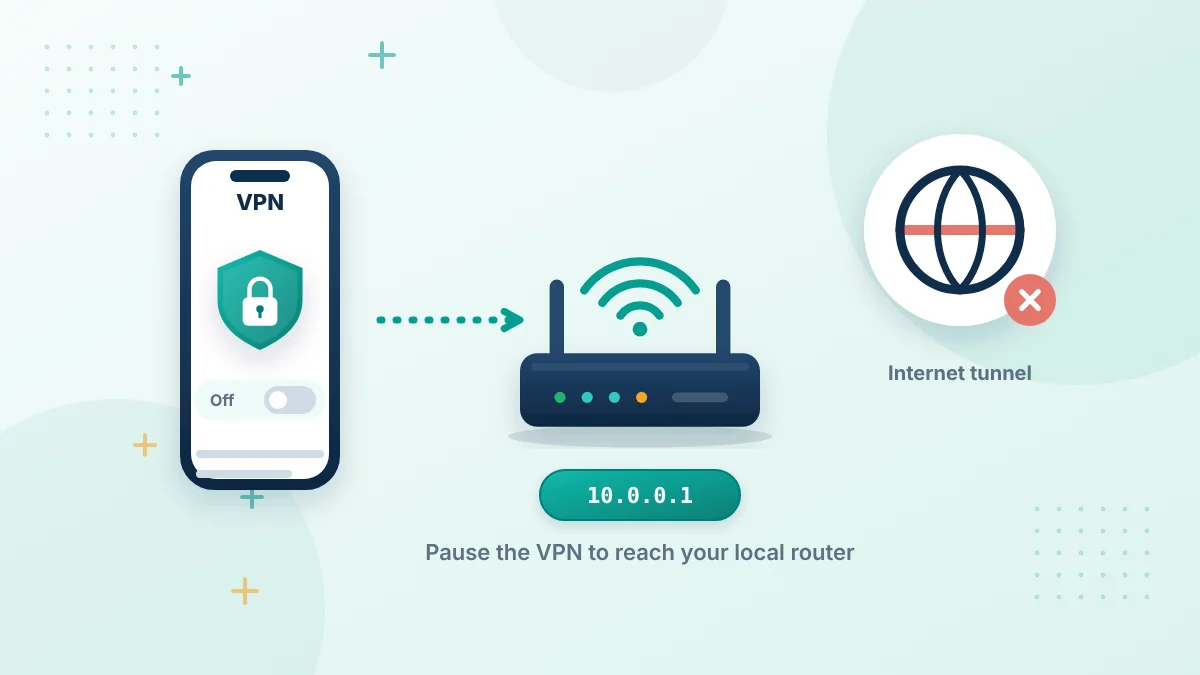
A VPN can send browser traffic through a server instead of keeping it on your local network. This may stop the router page from loading. Pause the VPN, close the tab and try 10.0.0.1 again. Turn the VPN on after you finish managing the router. Work or school devices may have network controls that cannot be disabled. In that case, try a personal device connected to the same router.
6. Test Another Browser or Device
A saved redirect, old cache file or extension can interfere with the login page. Try a private browser window before clearing all browsing data. You can also test another browser. If the page opens there, the problem is probably related to the browser rather than the router. Trying a different device is another useful check. When the page works on one phone but not another, focus on the affected device’s WiFi, VPN and browser settings.
7. Check the Router and Ethernet Cable
Look at the router’s power and network lights. A device that is off, frozen or still starting cannot serve the admin page. If you use Ethernet, make sure the cable is firmly connected at both ends.
- Try another LAN port if one is available.
- Avoid connecting the computer to a port labelled WAN or Internet.
When none of your devices can reach the panel, disconnect the router’s power, wait briefly and reconnect it. Give the router time to start before testing the address again.
8. Renew the Local Network Connection
Your device may be holding old network information.
- Disconnect from WiFi.
- Reconnect using the correct wireless password.
On Windows, disabling and enabling the network adapter may refresh the connection. You can also restart the computer if you prefer a simpler approach. Check the IP details after reconnecting. If the Default Gateway is blank, the device may not be receiving network settings from the router.
When the Page Opens but Login Fails
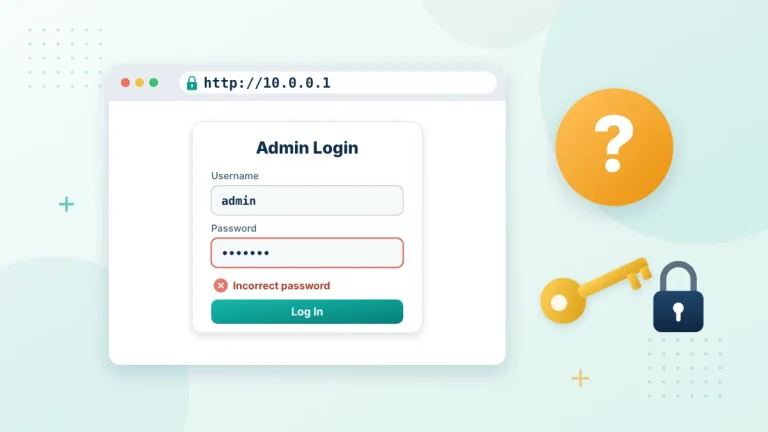
Seeing the login form confirms that the browser can reach the router. A rejected username or password should be handled separately. Check the router label for the admin details. Do not confuse the WiFi password with the administrator password. If the credentials were changed earlier, the printed factory password may no longer work. Avoid repeatedly guessing passwords. Ask the network owner, installer or internet provider for the details.
Should You Factory-Reset the Router?
A factory reset is not the first fix for a refused connection or timeout. It can erase your WiFi name, password, admin login and other custom settings. Restarting is safer because it normally keeps the configuration. Consider a reset only when you own the router, every normal check has failed and you know how to configure the connection again. Provider-supplied equipment may need special settings after a reset. Contact the provider first if you are unsure.
Frequently Asked Questions
Why does 10.0.0.1 say connection refused?
The router may use another gateway, its admin service may not be accepting connections, or a browser or proxy setting may be interfering. Confirm your network’s Default Gateway first.
Why does the connection keep timing out?
Your device may be connected to the wrong network, the router may be offline, or a VPN may be redirecting local traffic. Check your WiFi or Ethernet connection and confirm the router’s gateway address.
Does 10.0.0.1 require internet access?
Usually not. 10.0.0.1 is a private local IP address, but you still need a working WiFi or Ethernet connection to the router. The router must also use this address.
Why does 10.0.0.1 open Google?
The browser probably treated the address as a search query. Type http://10.0.0.1 directly into the browser’s address bar instead of a search box.
Is 10.0.0.0.1 a valid alternative?
No. 10.0.0.0.1 has five number groups and is not a valid IPv4 address. Use 10.0.0.1 only if it matches the gateway shown in your network details.
Test the 10.0.0.1 Login Page on Another Device
If the 10.0.0.1 login page is not opening on one phone or laptop, try a second device connected to the same WiFi. If it works there, the problem is on the first device, such as a VPN, a proxy, a custom DNS setting or an old browser cache. If it fails on every device, the router or its address is the likely cause.
Clear the Browser Cache and Saved Redirects
Browsers sometimes remember an old redirect or an HTTPS-only setting for an address. Open a private window and type http://10.0.0.1. If the page opens there, clear the cache and cookies for that address in your normal browser.
Signs That Your Router Uses a Different Address
- Your default gateway shows 192.168.1.1, 192.168.0.1 or another number.
- The router label lists a different admin address.
- You recently replaced your router or changed your internet provider.
- You are connected through a mesh system or a WiFi extender.
In these cases the 10.0.0.1 login page is not opening because the router answers on another address. Use the gateway shown on your device, or read our router IP address guide.
Test the Router With an Ethernet Cable
A wired connection removes WiFi problems from the test. Plug a laptop into a LAN port on the router, wait a few seconds and open http://10.0.0.1. If the page opens over Ethernet but not over WiFi, check the WiFi network name and any band steering or guest network settings.
When to Contact Your Internet Provider
Contact your provider if the router lights show an error, if every device fails to reach the gateway after a restart, or if the provider manages the gateway for you. Many providers can check the device remotely and confirm the correct login address. Once the page opens, follow our 10.0.0.1 phone and computer login steps.
Final Words
If the 10.0.0.1 login page is not opening, check the network, address and Default Gateway before changing anything. Then test HTTP, pause your VPN and restart the router if needed. Use a factory reset as a final step. Most connection-refused and timeout errors can be traced without deleting the router’s working settings.
More Help When the 10.0.0.1 Login Page Is Not Opening
These guides cover the next steps once you can reach the router again.
Useful references: default gateway and RFC 1918 private address ranges.