Router IP Addresses
Router IP Address: How to Find Your Correct Router IP
Your router IP address is the local gateway your devices use to open the admin page. Learn how to find it on any device and why 10.0.0.0.1 never works.
- Common IP list
- All devices covered
- Avoid typing errors
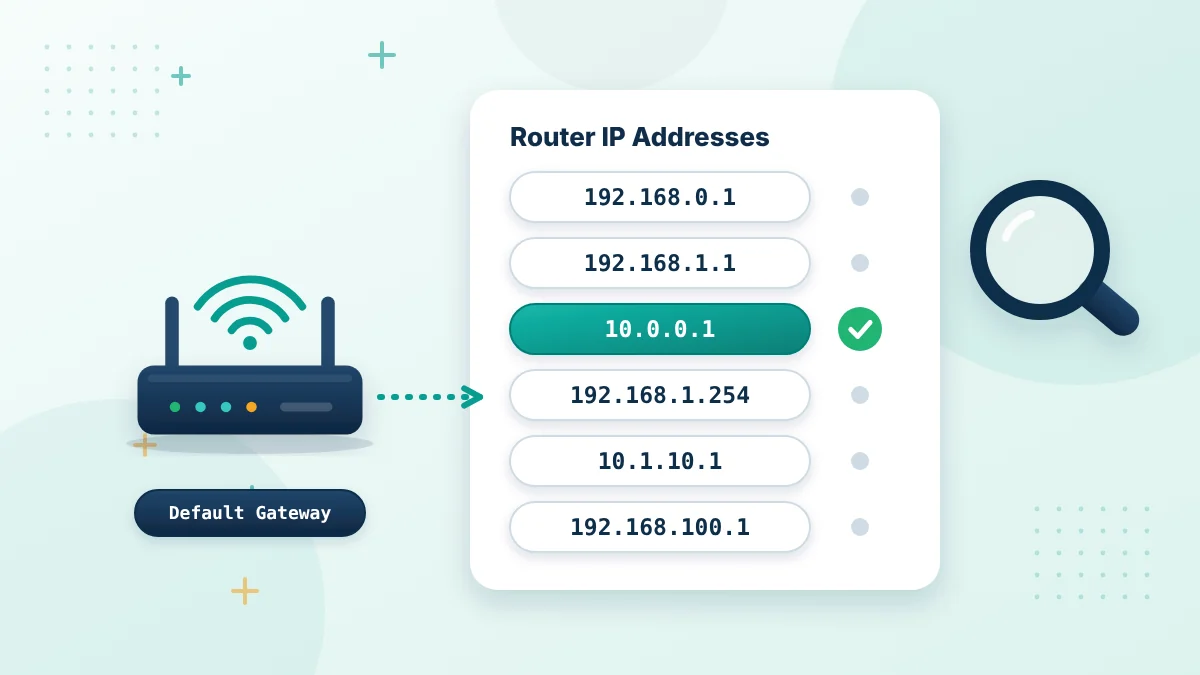
Router IPs are local addresses used to connect devices and open network settings. Your router may use 10.0.0.1, 192.168.0.1, 192.168.1.1 or another address as its default gateway. You should confirm the gateway assigned to your connection instead of testing random IP addresses. The correct number can usually be found in the WiFi or network details on your phone or computer. One common mistake is entering 10.0.0.0.1. This address contains five number groups and is not valid IPv4 formatting. The correct version is 10.0.0.1.
What Is a Router IP Address?
A router IP address identifies the router inside a local network. Phones, laptops, televisions and other connected devices use it to communicate with the router. The same address may also open the router’s management panel. An authorized user can enter it in a browser and sign in to review available settings. A home network normally has two different types of addresses. The router receives a public IP for communication over the internet, while local devices receive private IPs for communication inside the network. The local gateway is the one used for router login. It is not usually accessible from outside the network.
Common Router IP Addresses
Different manufacturers and internet providers use different gateway addresses. Even two routers from the same brand may not have identical settings. Here are several addresses commonly seen on local networks:
| Router IP | Common use |
|---|---|
10.0.0.1 |
Router, gateway or hotspot management |
192.168.0.1 |
Home router administration |
192.168.1.1 |
WiFi and modem-router settings |
192.168.1.254 |
Some ISP-supplied gateways |
192.168.100.1 |
Some modem and network-device panels |
10.1.10.1 |
Some business or provider networks |
This table does not mean every address will work on your connection. Your router responds only to its configured IP.
Private IP vs Public IP
A private IP works inside a home, office or local hotspot. Private addresses are not used like normal public website addresses. Common private IPv4 ranges include:
- 10.0.0.0 to 10.255.255.255
- 172.16.0.0 to 172.31.255.255
- 192.168.0.0 to 192.168.255.255
A public IP represents your internet connection to outside services. It is normally assigned by an internet provider and may change over time. The number you see on a “What is my IP?” website is generally the public address. It may not be the address needed to open the router dashboard.
How to Find Your Router IP
The quickest method is to check the active network connection. Look for a value named Router, Gateway or Default Gateway.
Find It on Windows
Press the Windows key, type Command Prompt and open it. Enter:
ipconfig
Look under the active WiFi or Ethernet connection. The number beside Default Gateway is normally your router’s local address. Ignore sections marked disconnected. Computers with several network adapters may display more than one set of details.
Find It on Android
Open Settings and go to the WiFi section. Tap the connected network and view its details or advanced information. Look for Gateway or Router. Menu names can differ between Samsung, Xiaomi, Oppo and other Android devices.
Find It on iPhone or iPad
Open Settings > Wi-Fi and tap the information icon beside the connected network. Scroll until you see the Router field. That value is the address to enter in Safari or another browser.
Find It on macOS
Open System Settings, select Network and choose your active connection. View its details and open the TCP/IP section. The address beside Router is normally the correct local gateway.
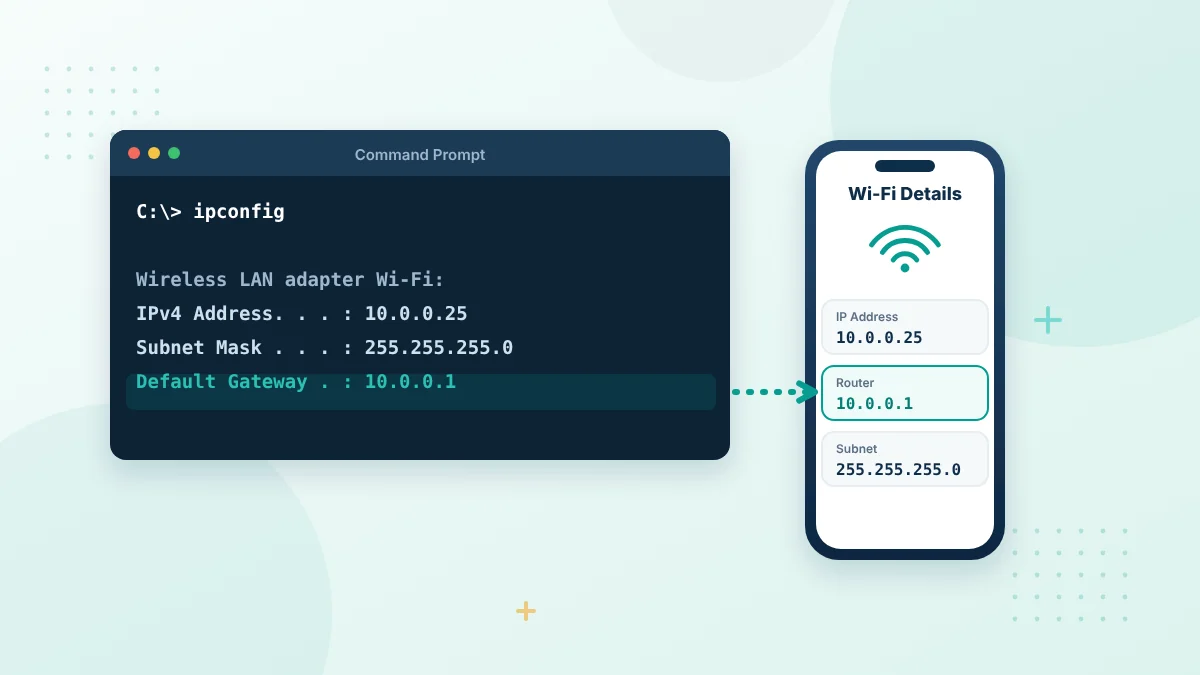
Find your gateway
Check the Default Gateway First
Your device already knows the router address. Look for Default Gateway or Router in your network details.
- Windows: run ipconfig in Command Prompt
- Android: open the WiFi network details
- iPhone: tap the info icon next to the WiFi name
- Mac: open network settings and TCP/IP details
How to Open a Router IP
Once you know the correct address, stay connected to that router through WiFi or Ethernet. Open a browser and type the IP directly into its address bar.
For example:
http://10.0.0.1
Do not add www, .com or spaces. If a search-results page appears, you probably typed the address into a search box. The login screen should appear when the address is correct and the router is responding. Enter only the administrator details for a network you own or are authorized to manage. The admin password may differ from the WiFi password. Check the router label, manual or provider information if you do not know it.
Correct and Incorrect IP Formats
An IPv4 address contains four number groups separated by three dots. A misplaced dot, extra zero or letter can prevent the page from opening.
| Entered address | Status | What to correct |
|---|---|---|
10.0.0.1 |
Valid format | No change needed |
10.0.0.0.1 |
Five groups | Remove the extra .0 |
10.0.0.l |
Contains a letter | Replace l with 1 |
.10.0.0.1 |
Opening dot | Remove the first dot |
192.168.1.1. |
Final dot | Remove the last dot |
www.10.0.0.1.com |
Not a router IP | Enter only the IP |
A correctly formatted address is not automatically your router’s gateway. It must still match the address used by your network.
Why Is the Router IP Not Opening?
First, make sure your phone or computer is connected to the correct WiFi. Mobile data alone cannot normally reach a private router page. Retype the address without extra characters. A browser may also force HTTPS even when an older router uses HTTP, so entering the full http:// address can help. Temporarily pause a VPN or proxy if it is routing traffic away from the local network. You can enable it again after checking the page.
If nothing changes, restart the router and allow it to finish starting. Restarting usually keeps the existing configuration. Avoid pressing the factory-reset button just because the page does not load. A reset can remove the WiFi password, custom network name and provider-specific settings.
Can Two Devices Have the Same IP?
Two devices should not use the same local address at the same time. When that happens, an IP conflict may interrupt access for one or both devices. Routers normally use DHCP to assign available addresses automatically. Problems are more likely when someone manually gives a device an address already in use. If you suspect a conflict, reconnect the affected device or restart it so that it can request another address. Avoid changing DHCP settings unless you understand the current network setup.
Frequently Asked Questions
Which IP belongs to my router?
Check the value listed as Router, Gateway or Default Gateway in your connected device’s network details.
Is 10.0.0.1 a router IP?
It can be. Some routers and hotspot systems use 10.0.0.1 as their local gateway, but not every router does.
Is 10.0.0.0.1 a valid router address?
No. 10.0.0.0.1 has five number groups and is not a valid IPv4 address. The correctly formatted address is 10.0.0.1, which will work only if your router uses it.
Do router IPs work without internet?
A local router page can usually open without internet service. Your device still needs a working WiFi or Ethernet connection to the router.
Are WiFi and router IP addresses the same?
If you mean your device’s IP while connected to WiFi, usually no. Each connected device normally receives its own local IP, while the router uses a separate gateway address.
Can I change my router IP?
Many routers allow an administrator to change the LAN address. Doing so can disconnect devices and alter other network settings, so it should be handled carefully.
Final Words
Router IPs help devices communicate within a local network and give authorized users a way to reach the settings panel. Check your actual default gateway before trying to log in. Enter the confirmed address carefully and use the browser address bar. If 10.0.0.1 does not work, do not assume the router is faulty—it may simply use another local IP.
Default Router IP Address by Brand
Many router makers use one of a few common addresses. The table shows typical defaults, but your provider or installer may have changed them, so always confirm the default gateway on your own device.
| Brand or provider | Common router IP address |
|---|---|
| Xfinity (Comcast) gateways | 10.0.0.1 |
| TP-Link | 192.168.0.1 or 192.168.1.1 |
| Netgear | 192.168.1.1 or 192.168.0.1 |
| Linksys | 192.168.1.1 |
| D-Link | 192.168.0.1 |
| ASUS | 192.168.1.1 or 192.168.50.1 |
| Belkin | 192.168.2.1 |
| Huawei | 192.168.100.1 or 192.168.3.1 |
| Apple AirPort | 10.0.1.1 |
Some routers also accept a web address such as routerlogin.net or tplinkwifi.net. It opens the same admin page while you are connected to that router.
Find Your Router IP Address on Linux and Chromebook
Linux
Open a terminal and run ip route | grep default. The address after the word via is your router IP address. On older systems, the command route -n shows the same value in the Gateway column.
Chromebook
Open Settings > Network, select your WiFi network and open its details. The Gateway field in the Network section shows the router IP address.
How to Change Your Router IP Address
You may want to change the router IP address when two routers on the same network use the same address, or when you connect your own router behind a provider gateway.
- Log in to the admin page with the current address. Our 10.0.0.1 phone and computer login guide shows how.
- Open the LAN, Network or DHCP settings.
- Change the LAN IP address, for example from 192.168.1.1 to 192.168.2.1.
- Update the DHCP range so it matches the new address if the router does not do it automatically.
- Save the settings and wait for the router to restart.
- Reconnect your device and open the new address in the browser.
Write down the new address before you save. If you lose access, a factory reset returns the router to its original default gateway, but it also removes your custom settings.
Why Your Router IP Address Might Change
- Your internet provider replaced or reset the gateway.
- Someone changed the LAN settings in the admin panel.
- You added a mesh system, a WiFi extender or a second router.
- You are connected to a different network, such as a Piso WiFi hotspot or a guest network.
- A factory reset restored the original address.
When the old address stops working, check the default gateway again instead of guessing.
Router IP Address and IPv6
Most router login pages use an IPv4 address such as 10.0.0.1 or 192.168.1.1. Your device may also show an IPv6 gateway that starts with fe80. That is a link-local address used for routing. For the admin panel, use the IPv4 default gateway unless your router manual says otherwise.
Router IP Address Security Tips
- Change the default admin password after your first login. See our 10.0.0.1 default password guide.
- Turn off remote management if you do not use it.
- Keep the router firmware updated from the official source.
- Do not share screenshots that show your admin password or WiFi key.
Changing the router IP address does not make a network secure by itself. A strong admin password and up-to-date firmware matter much more.
Router IP Address vs Modem IP Address
Some homes use a separate modem and router. In that case each device can have its own admin page. The modem often uses an address such as 192.168.100.1, while the router uses its own gateway address such as 192.168.1.1 or 10.0.0.1.
Your phone or computer shows the router as its default gateway, because that is the device it talks to directly. To reach the modem page, you may need its separate address from the modem label or manual.
Find the Router IP Address on a Smart TV or Game Console
Smart TVs, streaming boxes and game consoles also show network details. Open the network or internet settings, select the connected network and look for Gateway, Router or Default Gateway. The value is the same router IP address your phone or computer uses on that network.
This is useful when you only have a TV or console nearby and need to confirm which address to open later on another device.
More Questions About the Router IP Address
Is 192.168.1.1 the same as 10.0.0.1?
No. Both are private router addresses, but they belong to different ranges. Your router answers only on the address set in its LAN settings.
Can I find my router IP address without a computer?
Yes. Android phones, iPhones and tablets show the router or gateway address in the WiFi network details.
Why does my phone show a different router IP address than my laptop?
The two devices may be connected to different networks or to different nodes of a mesh system or extender. Check the WiFi name on both devices and use the gateway of the network you want to manage.
Does the router IP address change when the internet goes down?
No. The local router IP address stays the same even when the internet connection is down. Only the public IP address from your provider may change.
Can two routers have the same router IP address?
Yes, but not on the same network. If you connect a second router behind the first one, change the LAN address of one of them so they do not conflict.
More Router IP Address Guides
Once you know your router IP address, these guides show you what to do next.
Useful references: RFC 1918 private address ranges and default gateway.
Found your router address?
Open it in your browser address bar and sign in with your admin details.